One-on-Ones
One-on-one meetings are structured conversations between a manager and a direct report. Takonaut gives you a dedicated space to prepare topics, take notes, track action items, and keep a running history of every 1:1 — so nothing falls through the cracks between meetings.
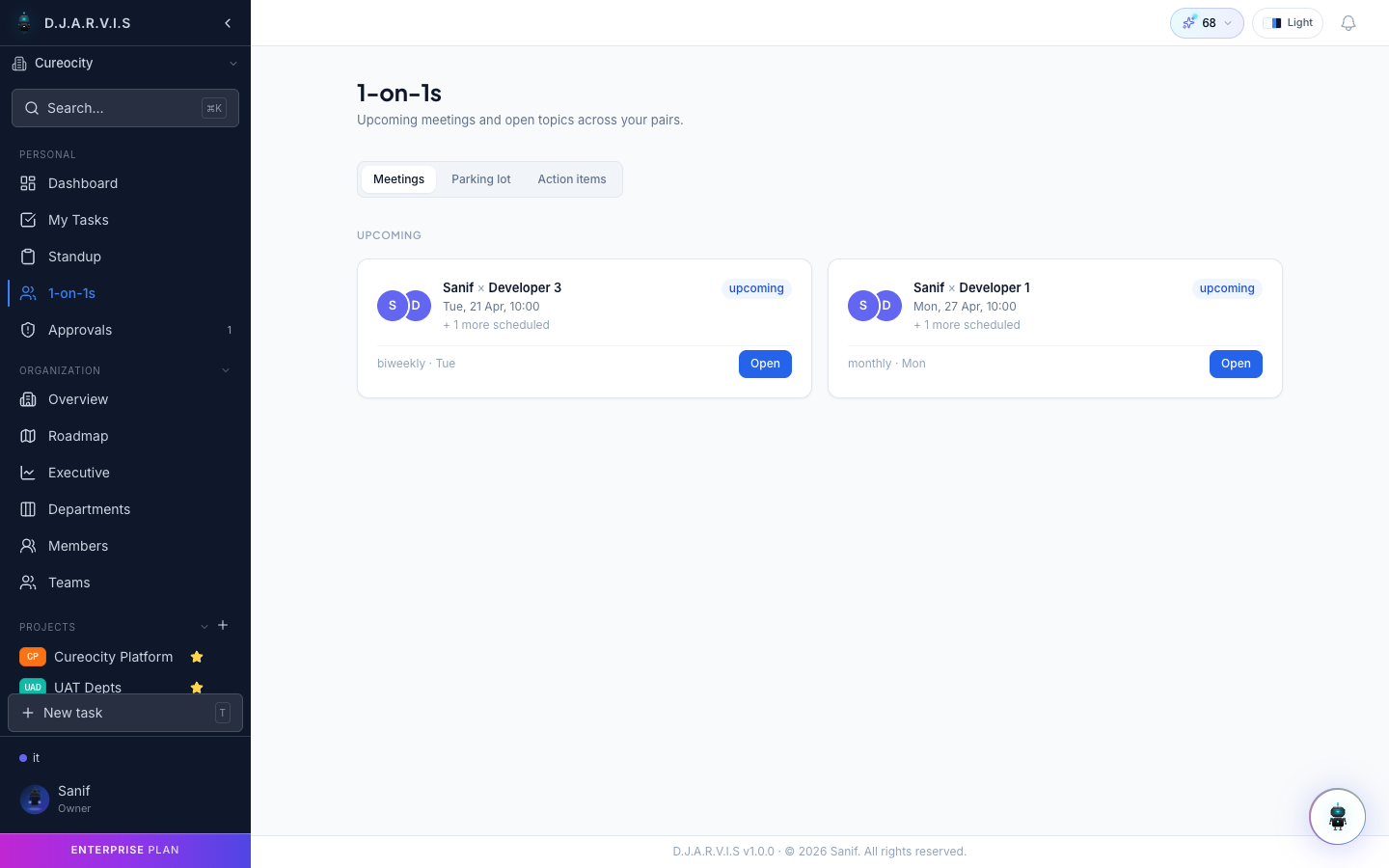
Scheduling 1:1s
To set up a one-on-one:
- Navigate to 1-on-1s in the sidebar.
- Click New 1:1 and select the person you want to meet with.
- Set the meeting cadence — weekly, biweekly, or monthly.
- Choose a day and time that works for both of you.
Once created, the 1:1 appears on both participants’ sidebar under 1-on-1s. Each upcoming meeting shows the date and how many topics have been added so far.
Either participant can reschedule or adjust the cadence at any time.
Topics
Both the manager and the report can add topics before the meeting. Topics are the agenda items you want to discuss. To add one:
- Open the upcoming 1:1.
- Click Add Topic.
- Write a short title and optional description.
Topics are visible to both participants as soon as they are added, so the other person can prepare. During the meeting, work through topics one by one — mark each as discussed when you’re done.
Adding topics ahead of time ensures meetings stay focused and that important items don’t get forgotten in the moment.
Meeting notes
During the 1:1, either participant can capture meeting notes directly in the app. Notes are attached to the specific meeting date, creating a permanent record of what was discussed.
Notes are shared between both participants in real time. You can write them collaboratively during the meeting or have one person take notes and share them afterward.
Action items
Conversations are only useful if they lead to follow-through. When a topic results in a concrete next step, create an action item directly from the 1:1:
| Field | Description |
|---|---|
| Title | What needs to be done. |
| Assignee | Who is responsible — the manager, the report, or someone else. |
| Due date | When it should be completed. |
Action items carry over between meetings. At the start of each 1:1, you can review outstanding action items from previous sessions to check progress and close completed ones.
Parking lot
Not every topic can be covered in a single meeting. The parking lot is a holding area for topics that were raised but deferred to a future session. Instead of losing track of them, park the topic and it will automatically surface in your next 1:1 agenda.
To park a topic, click the Park button next to it during the meeting. Parked topics appear in a separate section on the next meeting’s page so they are not forgotten.
Action items dashboard
The action items dashboard collects every open action item from all your 1:1s into a single view. This is especially useful for managers who have multiple direct reports — instead of opening each 1:1 individually, you can see all pending follow-ups in one place.
The dashboard shows:
- Action item title and which 1:1 it came from.
- Assignee — who owns it.
- Due date — when it is expected.
- Status — open or completed.
Filter by person, due date, or status to focus on what needs attention. Overdue items are highlighted so they don’t slip through unnoticed.
Navigate to the action items dashboard from the 1-on-1s section in the sidebar.