Backlog
The backlog is where unscheduled work lives. It holds every task that has not yet been assigned to a sprint, giving you a single place to capture ideas, plan upcoming work, and prioritize what matters most.
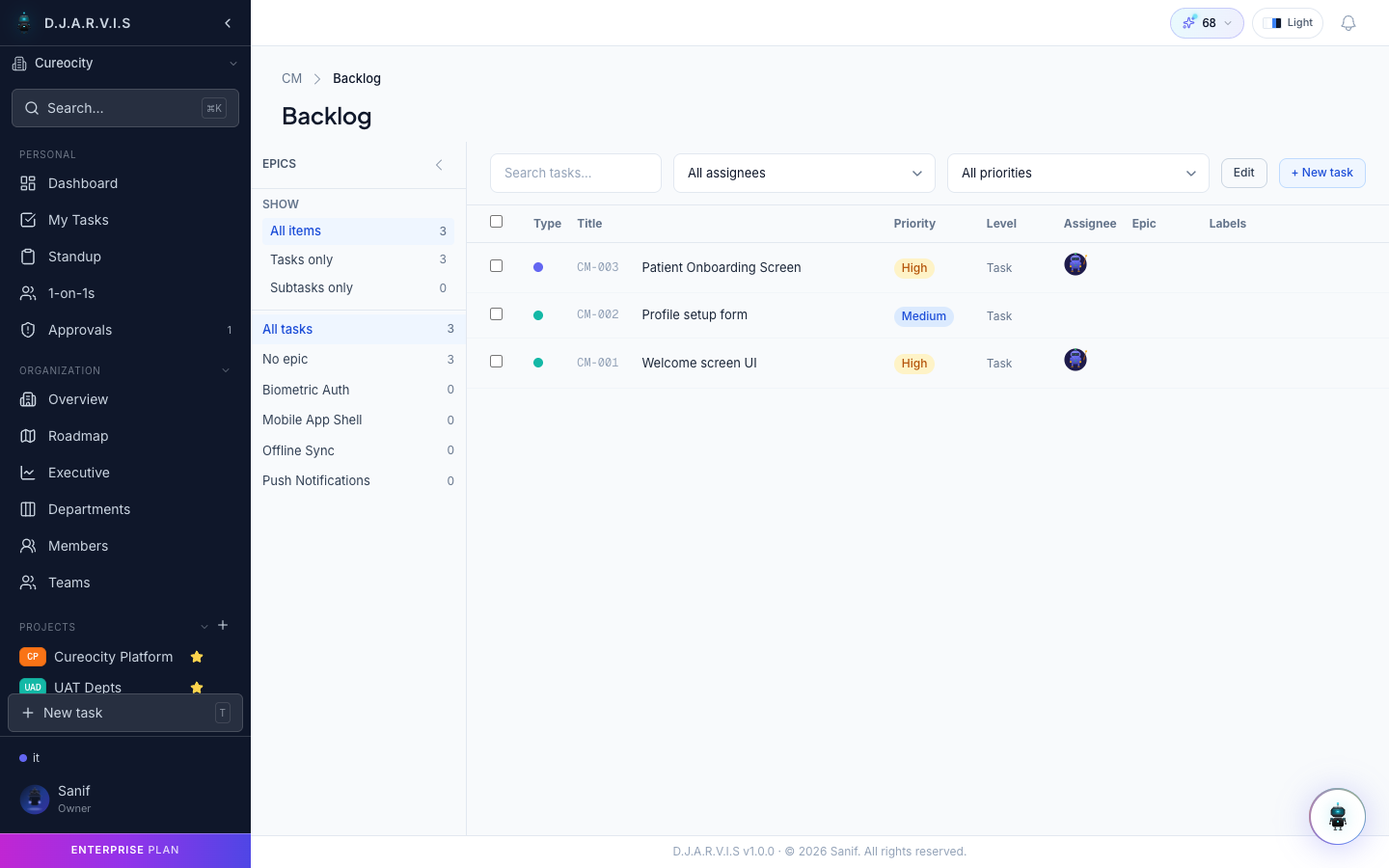
Backlog view
The backlog displays tasks in a list format, separate from the Kanban board. Tasks here are not part of any sprint — they represent future work waiting to be planned.
Each row shows the task ID, title, priority, type, assignee, and any labels. This gives you enough context to make prioritization decisions without opening each task individually.
Creating tasks in the backlog
Click the + Task button at the top of the backlog to create a new task directly. The task is added to the backlog by default, with no sprint assigned. Fill in the title, type, priority, and any other details, then save.
This is the recommended workflow for capturing new work: add it to the backlog first, then move it into a sprint during planning.
Prioritizing tasks
Drag tasks up or down in the backlog list to reorder them by priority. Tasks at the top of the backlog are the highest priority and should be pulled into the next sprint first.
You can also set the priority field on each task (Critical, High, Medium, Low) to formalize the ranking. The combination of list order and priority level gives your team a clear signal about what to work on next.
Moving tasks to sprints
To schedule backlog tasks into a sprint:
- Select one or more tasks using the checkboxes.
- Use the Move to Sprint action to assign them to an existing sprint.
Alternatively, drag tasks from the backlog directly into a sprint during sprint planning. Once a task is assigned to a sprint, it appears on the board and is removed from the backlog view.
Sorting and filtering
Use the toolbar controls to sort and filter the backlog:
- Sort by — order tasks by priority, creation date, due date, or type.
- Filter by assignee — show only tasks assigned to a specific person, or unassigned tasks.
- Filter by priority — narrow down to a specific priority level.
- Filter by type — show only bugs, stories, tasks, or subtasks.
- Search — type a keyword to find tasks by title or ID.
Filters help you focus during sprint planning. For example, filter to “unassigned + high priority” to find the most important work that still needs an owner.