Sprints
Sprints are time-boxed iterations — typically one or two weeks long — where your team commits to delivering a set of tasks. They bring focus and rhythm to your project by breaking large backlogs into manageable chunks with clear start and end dates.
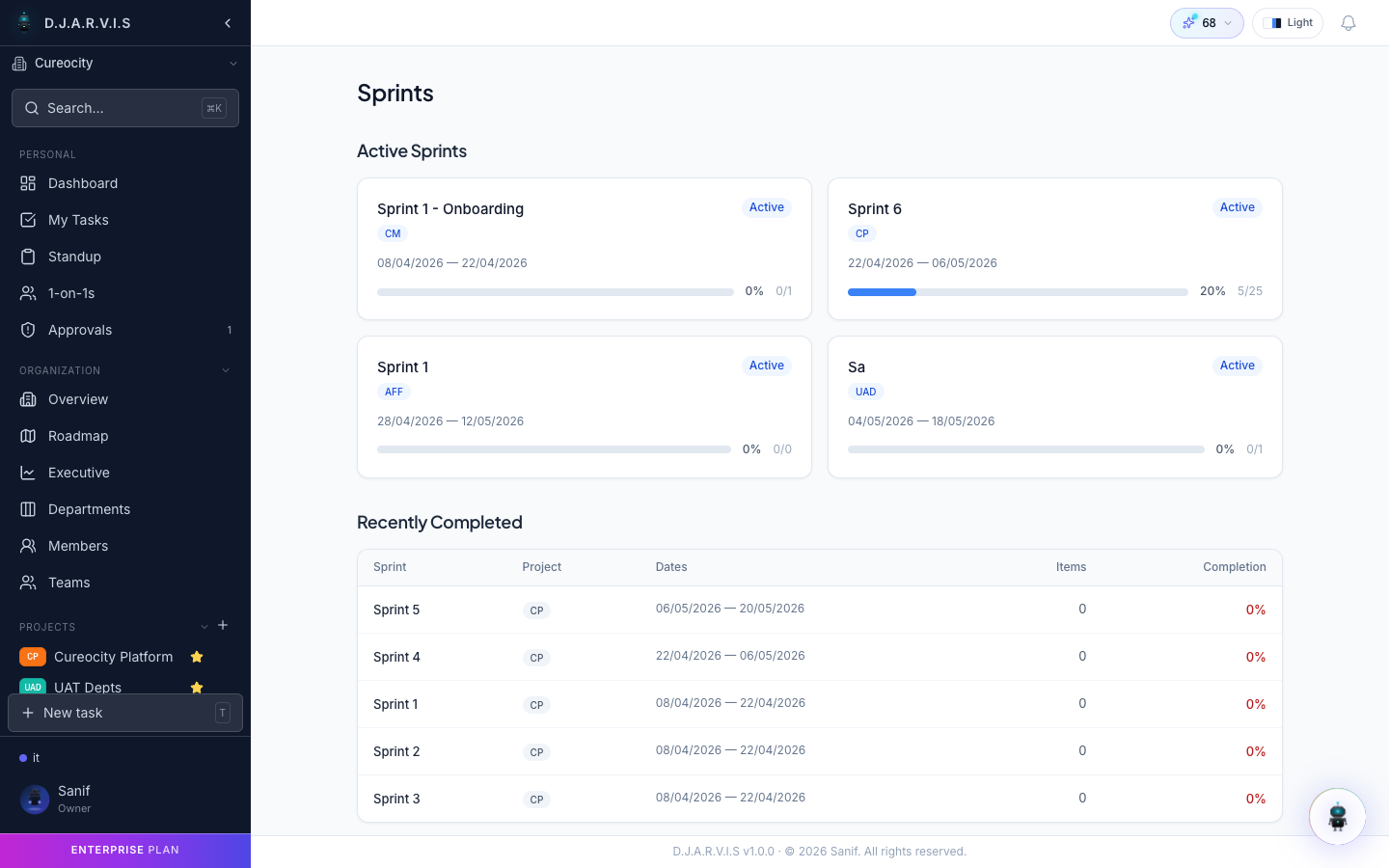
Sprints List Page
Every project has a Sprints page accessible from the sidebar. It shows all sprints for that project in reverse chronological order, giving you a quick overview of past, current, and upcoming work cycles.
Each sprint card displays:
- Sprint name — a short label like “Sprint 12” or “Auth Hardening”.
- Status badge — Planning, Active, or Completed.
- Date range — start and end dates.
- Progress bar — tasks completed versus total tasks in the sprint.
- Goal — the one-line objective the team is working toward.
Click any sprint to open its detail view.
Sprint States
A sprint moves through three states during its lifecycle:
| State | Meaning |
|---|---|
| Planning | The sprint has been created but not started. Tasks can be added, removed, and reordered freely. |
| Active | The sprint is underway. The board filters to show only this sprint’s tasks. Only one sprint per project can be active at a time. |
| Completed | The sprint has ended. Completed tasks are locked, and any remaining work can be moved to the next sprint. |
Sprint Details
When you open a sprint, you’ll see its full details:
- Name — a descriptive label for the iteration.
- Goal — a short statement explaining what the team aims to achieve. This keeps everyone aligned on the sprint’s purpose.
- Start date and End date — the boundaries of the time box.
- Story points — total points planned versus completed, useful for tracking velocity over time.
- Task list — every task assigned to the sprint, grouped by status.
Sprint Progress
The sprint detail view tracks progress in real time. As tasks move from To Do through In Progress to Done, the progress bar and completion percentage update automatically.
You can monitor:
- Task count — how many tasks are done out of the total.
- Story points burned — points completed versus planned, giving a more nuanced view of progress than task count alone.
- Remaining work — tasks still in To Do or In Progress, so the team can gauge whether they’ll hit the sprint goal.
Sprint Board
When a sprint is active, the project board automatically filters to show only that sprint’s tasks. This keeps the board focused — you see exactly what the team is working on right now, without backlog noise.
The board uses the same columns as the regular project board (To Do, In Progress, Review, Done, etc.), but scoped to the active sprint. You can still switch to the full backlog view if you need to pull in additional tasks.
Viewing All Sprints
To see every sprint for a project — past, present, and future — navigate to the project in the sidebar and click Sprints. The list view shows all sprints with their status, dates, and progress at a glance.
Use this view to:
- Review completed sprints and their outcomes.
- Check upcoming sprints in the Planning state.
- Compare velocity across sprints by looking at story point completion.
Active Sprint Indicator
When a project has an active sprint, the board displays an active sprint indicator at the top. This shows the sprint name, remaining days, and a quick progress summary so you always know where the team stands without leaving the board.
If no sprint is active, the board shows the full backlog instead.