Project Settings
Project settings let you configure how your project behaves — from basic details like the name and description, to board layout, membership, sprint defaults, and workflow automation.
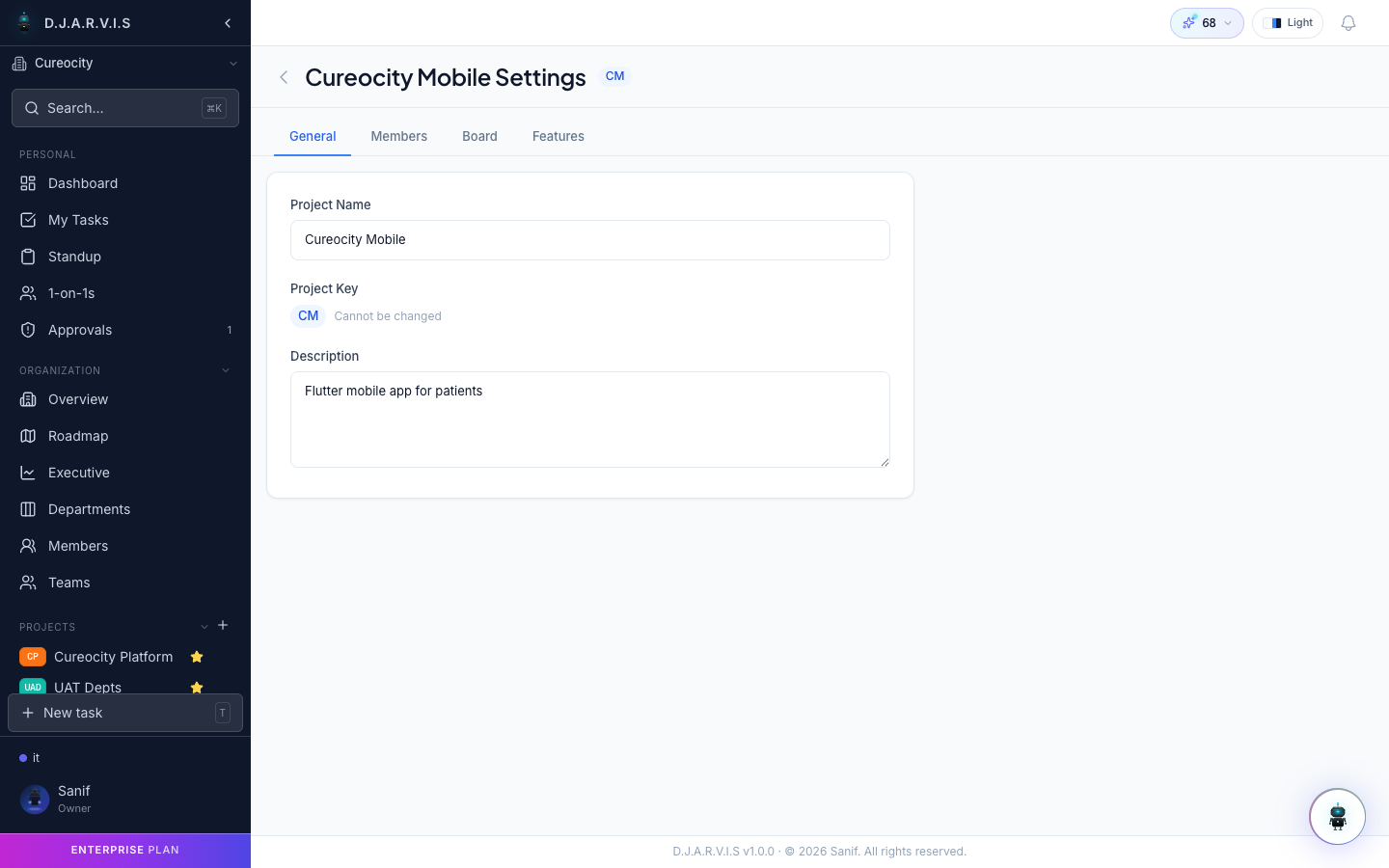
General settings
The General tab covers the core project information:
- Project name — update the display name of the project.
- Description — add or edit a summary of what the project is about.
- Project key — the unique identifier used as a prefix for task IDs (e.g.
CM). The key is set at creation and cannot be changed afterward. - Visibility — control who can see the project. Options are Private, Team, Department, and Organization. See Projects Overview for details on each level.
- Department / Team — change the organizational unit the project belongs to.
Board configuration
The Board tab lets you customize the Kanban columns and tracks that define your workflow.
Columns
Add, remove, rename, or reorder the status columns on your board. Each column maps to a task status. The default setup is To Do, In Progress, and Done, but you can model any workflow:
- Add a Code Review column between In Progress and Done.
- Add a QA column for testing workflows.
- Rename columns to match your team’s language.
Tracks
Tracks are sub-columns within a status column. They let you break a broad stage into finer steps without adding top-level columns. For example:
- In Progress could have tracks: Development, Code Review, QA.
- To Do could have tracks: Triaged, Ready for Dev.
To add a track, select a column and click Add Track. Tasks can be moved between tracks within the same column, and each track is visible on the board as a sub-lane.
Project members
The Members tab manages who has access to the project and what they can do.
- Add members — search for users in your organization and add them to the project.
- Add teams — assign an entire team, granting all team members access.
- Roles — assign project-level roles to control permissions (e.g. who can manage sprints, edit settings, or delete tasks).
- Remove members — revoke access for individuals or teams.
Changes to membership take effect immediately. Users who lose access will no longer see the project in their project list or receive notifications for it.
Sprint settings
The Sprints tab configures defaults for how sprints work in this project:
- Default sprint duration — set the standard length for new sprints (e.g. 1 week, 2 weeks).
- Auto-create sprints — optionally have the next sprint created automatically when the current one completes.
- Carry over incomplete tasks — choose whether unfinished tasks are moved to the next sprint or sent back to the backlog when a sprint ends.
These defaults apply when creating new sprints. Individual sprints can still have their dates and settings adjusted on a case-by-case basis.
Workflow automation
The Automation tab lets you define rules that trigger actions automatically based on task events. Automations reduce manual work and enforce team conventions.
Examples of automation rules:
- When a task moves to “In Progress”, automatically assign it to the person who moved it.
- When a task moves to “Done”, notify the reporter.
- When a task is created with priority “Critical”, send a notification to the project channel.
- When all subtasks are complete, move the parent task to “Done”.
Each rule has a trigger (the event that starts it) and one or more actions (what happens in response). Use the Enable / Disable toggle to turn rules on or off without deleting them.
To create a new rule, click Add Rule, select a trigger event, configure the conditions, and define the actions. Rules can also be created from the Automate button on the Board View.