Import & Export
Takonaut supports importing data from external sources so you can migrate to the platform without starting from scratch. You can also export your data when needed.
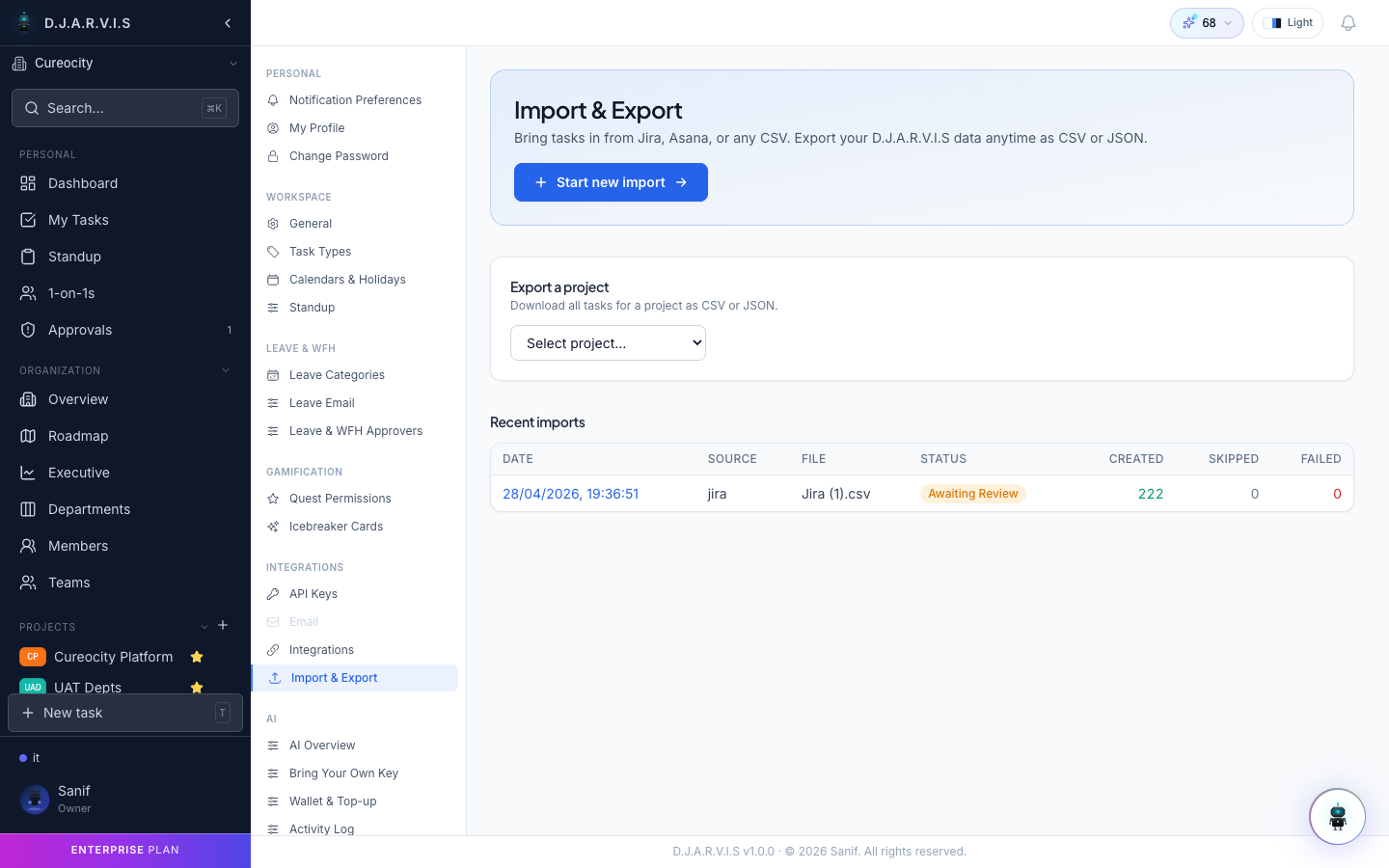
Data import
The import feature lets you bring in projects, tasks, and related data from other project management tools or structured files.
Supported formats
| Format | Description |
|---|---|
| CSV | Comma-separated files with headers matching Takonaut fields (title, description, priority, status, assignee, etc.). |
| JSON | Structured JSON files following the Takonaut import schema. |
| Third-party PM tools | Direct import from other project management platforms. Available importers depend on your plan. |
Import wizard
The import wizard walks you through the process step by step:
Step 1: Upload your file
Select the file you want to import. The system automatically detects the format and previews the data.
Step 2: Map fields
If your file’s column headers don’t exactly match Takonaut’s fields, the wizard lets you map them manually. For example:
- “Issue Title” maps to Title
- “Severity” maps to Priority
- “Sprint Name” maps to Sprint
Unmapped columns are skipped. Required fields (like Title) must be mapped before proceeding.
Step 3: Select target project
Choose which project the imported tasks should be added to, or create a new project during the import.
Step 4: Review and confirm
Preview the data that will be imported, including how many tasks will be created and any warnings about unmapped or invalid data. Confirm to start the import.
Import jobs
Large imports run as background jobs so you can continue using the app while data is being processed.
Each import job shows:
- Status — pending, in progress, completed, or failed.
- Progress — how many records have been processed out of the total.
- Results — number of successfully imported items and any errors.
- Error log — details about rows that failed to import and why (e.g. missing required fields, invalid values).
You can view the history of all import jobs from Settings > Import & Export > Import History.
Export
Export your project data for backup, reporting, or migration purposes.
What you can export
- Tasks — all tasks in a project with their full details (title, description, status, priority, assignee, sprint, story points, comments, etc.).
- Projects — project metadata and configuration.
- Sprint history — completed and active sprint data.
Export formats
Exports are available in CSV and JSON formats. Select the project and data type you want to export, choose your format, and download the file.
Exporting
- Go to Settings > Import & Export.
- Select the Export tab.
- Choose the project and data type.
- Select the export format.
- Click Export and download the generated file.
Large exports are processed in the background and you’ll be notified when the file is ready for download.