Work From Home
The Work From Home (WFH) module lets your team request remote working days, gives managers a clear approval workflow, and provides visibility into who is working from where on any given day.
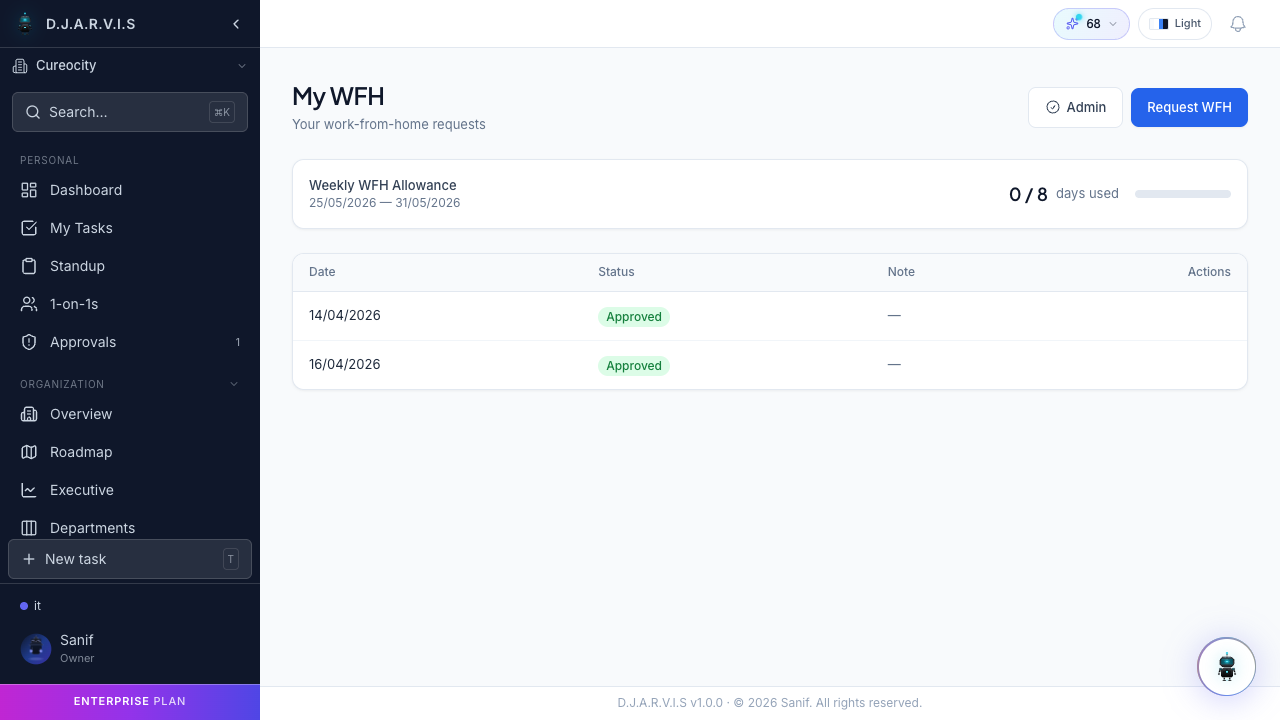
Submitting a WFH request
To request a work-from-home day:
- Open Time Off > Work From Home from the sidebar.
- Click Request WFH.
- Fill in the details:
| Field | Description |
|---|---|
| Date | The day you want to work from home. You can select a single date or a range of dates. |
| Reason | A brief explanation for why you need to work remotely. |
Click Submit to send your request for approval.
WFH approval workflow
WFH requests follow the same approval pattern as leave requests:
- Submitted — you send the request.
- Pending Approval — the request is waiting for your manager to review.
- Approved or Rejected — the manager approves or denies the request.
All your WFH requests and their current statuses are listed on the Work From Home page. You can cancel a pending request if your plans change before it has been reviewed.
WFH admin
Managers review incoming WFH requests from the Approvals section in the sidebar, alongside leave requests. For each WFH request you can see:
- The employee requesting remote work.
- The requested dates and reason.
Click Approve to confirm or Reject to deny the request. When rejecting, you can include a reason so the employee understands the decision.
WFH calendar
The WFH calendar gives you a team-level view of who is working remotely on each day. Approved WFH days appear on the calendar alongside approved leaves, so you get a complete picture of team availability.
This is especially useful for:
- Scheduling in-person meetings — picking days when everyone will be in the office.
- Office capacity planning — understanding how many people will be on-site.
- Team coordination — knowing who is remote so you can adjust communication accordingly.
Recurring WFH
If your organization supports a hybrid policy with fixed remote days, you can set up recurring WFH. Instead of submitting a new request every week, you define your regular WFH days (for example, every Wednesday and Friday) and the system automatically marks those days as work-from-home.
Recurring WFH schedules may still require manager approval depending on your organization’s policy. Once approved, the recurring days appear on the WFH calendar going forward without requiring individual requests each week.