Notifications
Takonaut keeps you informed about the things that matter through multiple notification channels. You control what you receive, where you receive it, and how much noise you want to deal with.
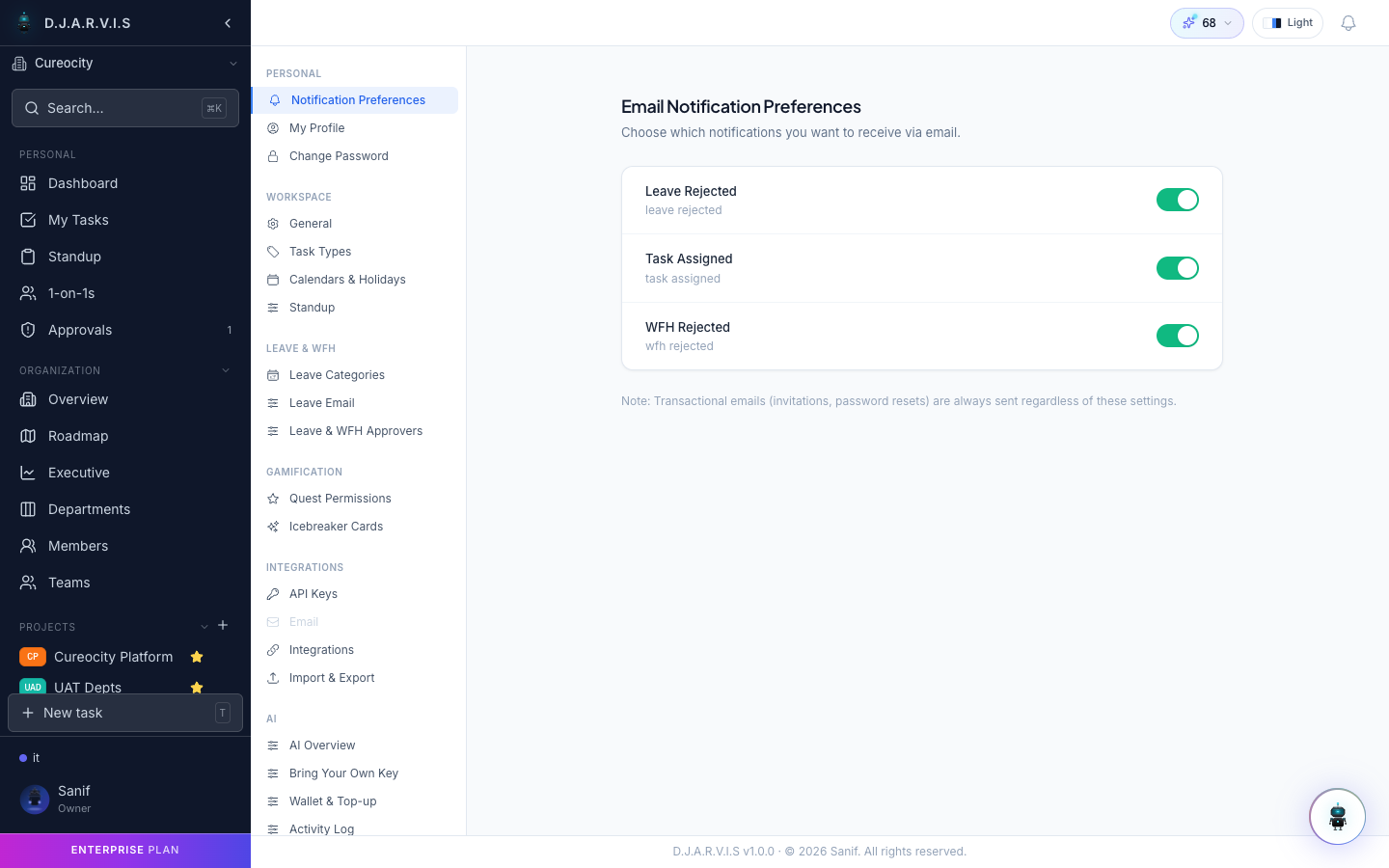
Notification channels
Notifications can be delivered through four channels:
| Channel | Description |
|---|---|
| In-app | Notifications appear in the bell icon dropdown in the top navigation bar. Always on. |
| Notifications sent to your registered email address. | |
| Slack | Notifications delivered to a Slack channel or direct message (requires Slack integration). |
| Webhook | Notifications sent as HTTP payloads to an external endpoint (requires webhook configuration). |
Notification preferences
Each user can configure their own notification preferences from Settings > Notifications.
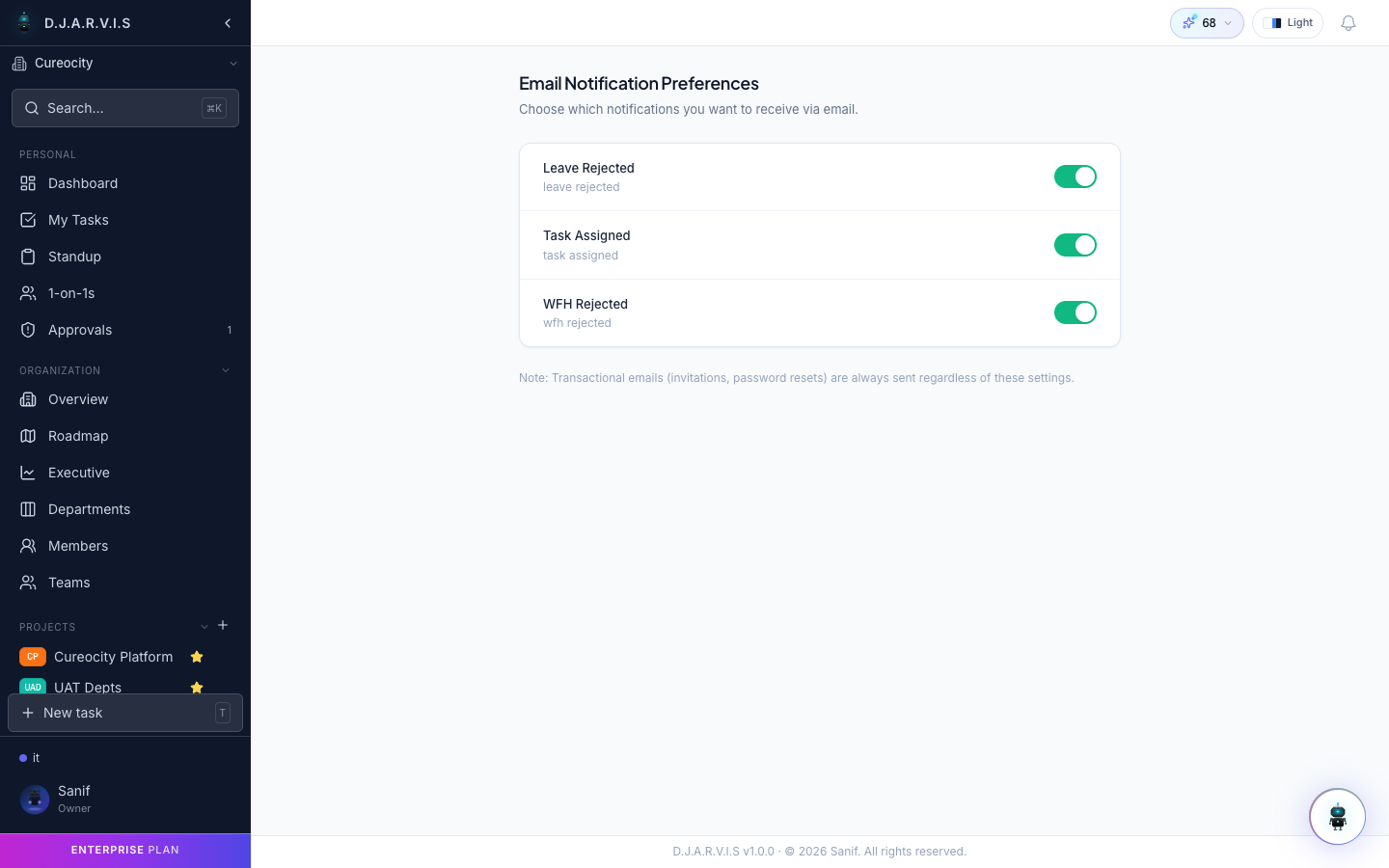
You can choose which events trigger notifications on each channel. For example, you might want:
- Task assigned to me — in-app and email.
- Task status changed — in-app only.
- Sprint started — in-app, email, and Slack.
- Standup reminder — Slack only.
- Leave approved — email only.
Toggle each event on or off per channel. Your preferences are personal — they don’t affect what other users in your organization receive.
In-app notifications
The bell icon in the top navigation bar shows your unread notification count. Click it to open the notification panel, which displays:
- A chronological list of notifications.
- Each notification shows the event type, relevant details, and a timestamp.
- Click a notification to navigate directly to the related item (task, sprint, leave request, etc.).
- Mark individual notifications as read, or clear all at once.
Notifications that require action (e.g. a leave approval request) are highlighted.
Email notifications
Email notifications are sent for events you’ve opted into. Each email includes:
- A clear subject line describing the event.
- The relevant details — who did what, on which task or project.
- A direct link to the item in Takonaut.
Emails are sent in near real-time. There is no digest or batching — each event generates its own email when enabled.
Task watchers
Beyond your global notification preferences, you can watch specific tasks to receive notifications about any changes to them:
- Open a task’s detail view.
- Click the Watch button (eye icon).
- You’ll now receive notifications for all updates to that task — status changes, new comments, assignment changes, and more.
Watching a task overrides your global preferences for that specific item. You’ll get notifications for the watched task even if you’ve turned off that event type globally.
Unwatch a task at any time by clicking the eye icon again.