Teams
Teams are cross-functional groups that sit inside departments. They represent the people who work together day-to-day — a Backend team, a Design team, a Growth team. Projects are typically owned by a team, and team membership drives access to those projects.
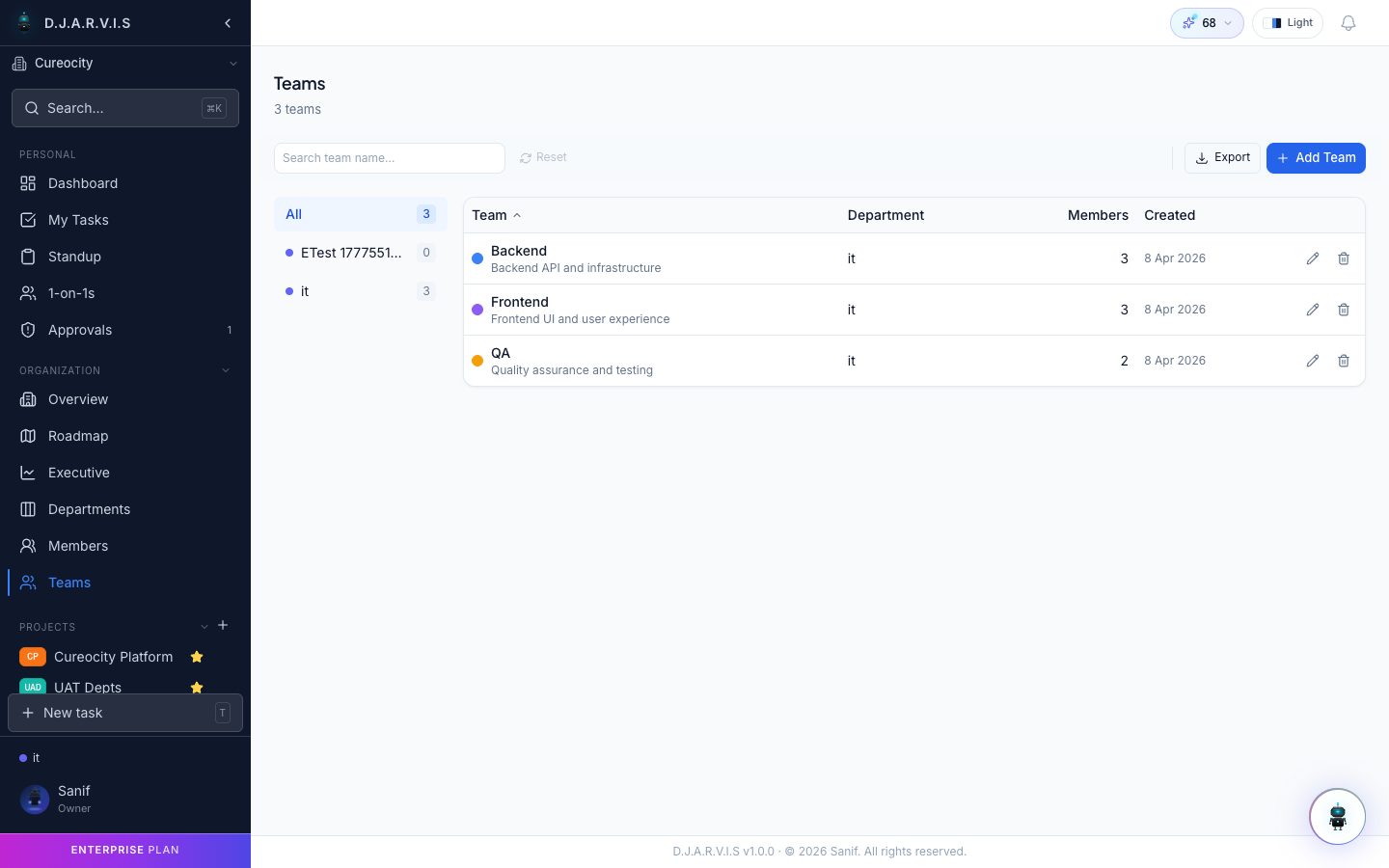
Browsing Teams
The Teams page lists every team in your organization. Each team card shows:
- Team name — the display name of the team (e.g. “Platform”, “Mobile”, “Brand Design”).
- Department — which department the team belongs to.
- Team Lead — the member designated as the team’s lead.
- Member count — how many people are on the team.
Use the search bar to find a team by name, or filter by department to see only the teams within a specific division.
Creating a Team
Click the + New Team button to create a team. You’ll need to provide:
| Field | Description |
|---|---|
| Name | A descriptive name for the team (e.g. “Frontend”, “DevOps”, “Content”). |
| Department | The department this team belongs to. Every team must be associated with exactly one department. |
After creating the team, you can immediately start adding members and assigning a Team Lead.
Team Members
To manage who’s on a team:
- Open the team from the Teams page.
- Click Add Member to search for and add existing organization members.
- To remove someone, click the remove icon next to their name.
Members added to a team automatically gain access to any projects scoped to that team (projects with Team visibility). Removing someone from a team revokes that access unless they’ve been added to the project individually.
A member can belong to multiple teams if needed — for example, a full-stack developer might be on both the Frontend and Backend teams.
Team Lead
Each team can have a designated Team Lead. The Team Lead:
- Is highlighted on the team card and in the team detail view.
- Has elevated permissions within the team’s scope — they can manage team members, oversee team projects, and approve certain requests.
- Serves as the default point of contact for the team in reporting and escalation workflows.
To assign a Team Lead, open the team and select a member for the lead role. Only Admins, Owners, and the relevant Department Head can assign or change a Team Lead.
Team Projects
Projects can be associated with a team when created or updated later in project settings. A team’s projects appear in the team detail view, giving leads and members a focused look at everything the team owns.
When a project’s visibility is set to Team, all members of the associated team can see and access it. This is the most common setup for day-to-day project work — the team owns the project, and membership in the team grants access.
See Projects for more on how project visibility and membership work.
Team Visibility
Team membership affects what members can see across the app:
- Team-visible projects — any project with Team visibility is accessible to all team members without needing individual invitations.
- Department context — since every team belongs to a department, team members also appear in department-level views and reports.
- Cross-team collaboration — members on multiple teams see projects from all their teams in the sidebar and on the dashboard.
This layered visibility means you don’t need to manually manage access for every project. Assign people to the right team, set project visibility to Team, and access flows naturally from the org structure.