Departments
Departments represent the major divisions within your organization — Engineering, Product, Design, Marketing, Operations, and so on. They sit one level below the organization in the hierarchy and contain teams, which in turn own projects.
When the
org_tree_viewflag is on, the standalone Departments page is folded into the Organization Overview org chart. Department creation, editing, and the Department Head badge all live there. The dedicated department detail page (/organization/departments/[id]) — with calendar, dashboard, and member breakdown — is still available; click a department’s name in the chart to open it.
Browsing Departments
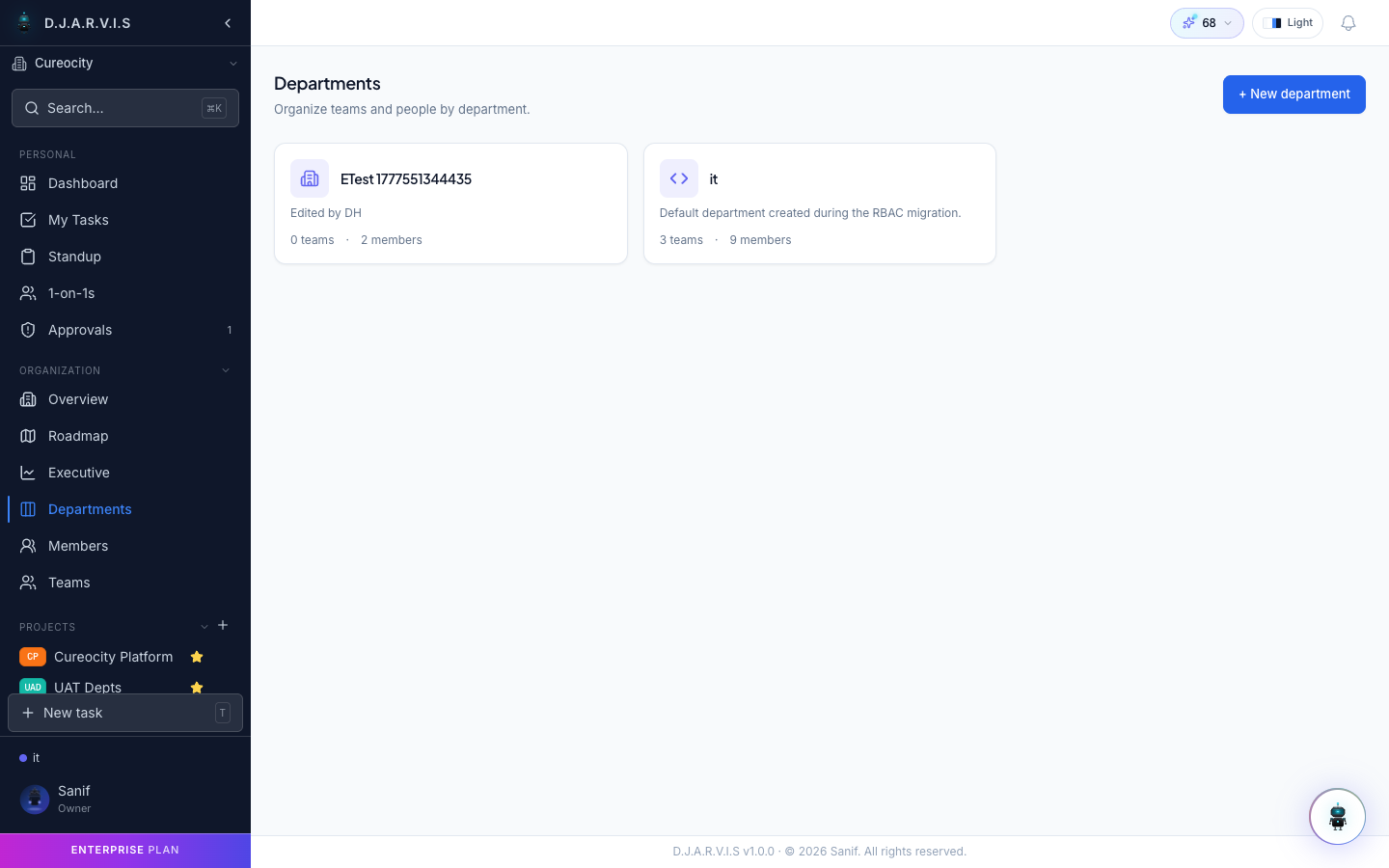
The Departments page lists every department in the organization. Each department card shows:
- Department name — the display name (e.g. “Engineering”, “People Ops”).
- Description — a short summary of what the department does.
- Department Head — the member leading the department.
- Team count — how many teams exist within the department.
- Member count — total members across all teams in the department.
Use the search bar to find a department by name, or browse the full list to get a birds-eye view of your org structure.
Creating a Department
Click the + New Department button to create one. You’ll need to provide:
| Field | Description |
|---|---|
| Name | A clear name for the department (e.g. “Engineering”, “Marketing”). |
| Description | An optional summary explaining the department’s purpose and scope. |
Once created, you can assign a Department Head, create teams within it, and configure department-specific settings like calendars and leave policies.
Department Head
Each department can have a designated Department Head. The Department Head:
- Has elevated permissions across the entire department — they can manage teams, oversee projects, and handle member assignments within their department.
- Serves as the default approver for leave and WFH requests from department members.
- Appears prominently on the department page and in org-level reports.
- Can view department-wide analytics including sprint velocity, task throughput, and team workload distribution.
To assign a Department Head, open the department and select a member for the role. Only Admins and Owners can assign or change a Department Head.
Department Teams
Teams are the building blocks inside a department. From the department detail view, you can:
- See all teams that belong to the department.
- Create new teams directly within the department context.
- Navigate to any team to manage its members and projects.
Every team belongs to exactly one department. When you create a team, you choose which department it sits under. This association drives the org hierarchy breadcrumb (Department > Team > Project) visible throughout the app.
See Teams for full details on managing teams.
Department Calendar
Each department can maintain its own working calendar. The department calendar lets you:
- Define working days — set which days of the week the department operates. Some departments may work different schedules (e.g. a support team working weekends while engineering does not).
- Add department holidays — mark days off that are specific to this department, separate from organization-wide holidays.
- View team availability — see who is on leave, working from home, or available on any given day.
The calendar integrates with the leave and WFH systems, so approved time-off requests automatically appear on the department calendar. This helps managers plan sprints and allocate work with full visibility into availability.
Department-Specific Settings
Departments can have their own policies that override or extend organization defaults:
- Leave policies — configure how many leave days members in this department get, which categories are available, and any department-specific rules.
- Approvers — set who approves leave and WFH requests. By default this is the Department Head, but you can designate additional approvers.
- Notifications — configure where department-level alerts are sent (e.g. a dedicated Slack channel for the engineering department).
These settings are managed from the department detail page. Only the Department Head, Admins, and Owners can modify department-specific settings.
My Department
For quick access, the sidebar includes a My Department shortcut under the Organization section. Clicking it takes you directly to the department you belong to, where you can see:
- Your department’s teams and their members.
- Active projects across the department.
- The department calendar with upcoming holidays and availability.
- Department-level stats and reports.
This is especially useful in large organizations where browsing through all departments to find your own would be tedious. If you’re a Department Head, this page also serves as your management dashboard for the department.