Dashboard
The dashboard is the first screen you see after signing in. It gives you a personalized overview of your work, your team’s progress, and your organization’s goals — all in one place.
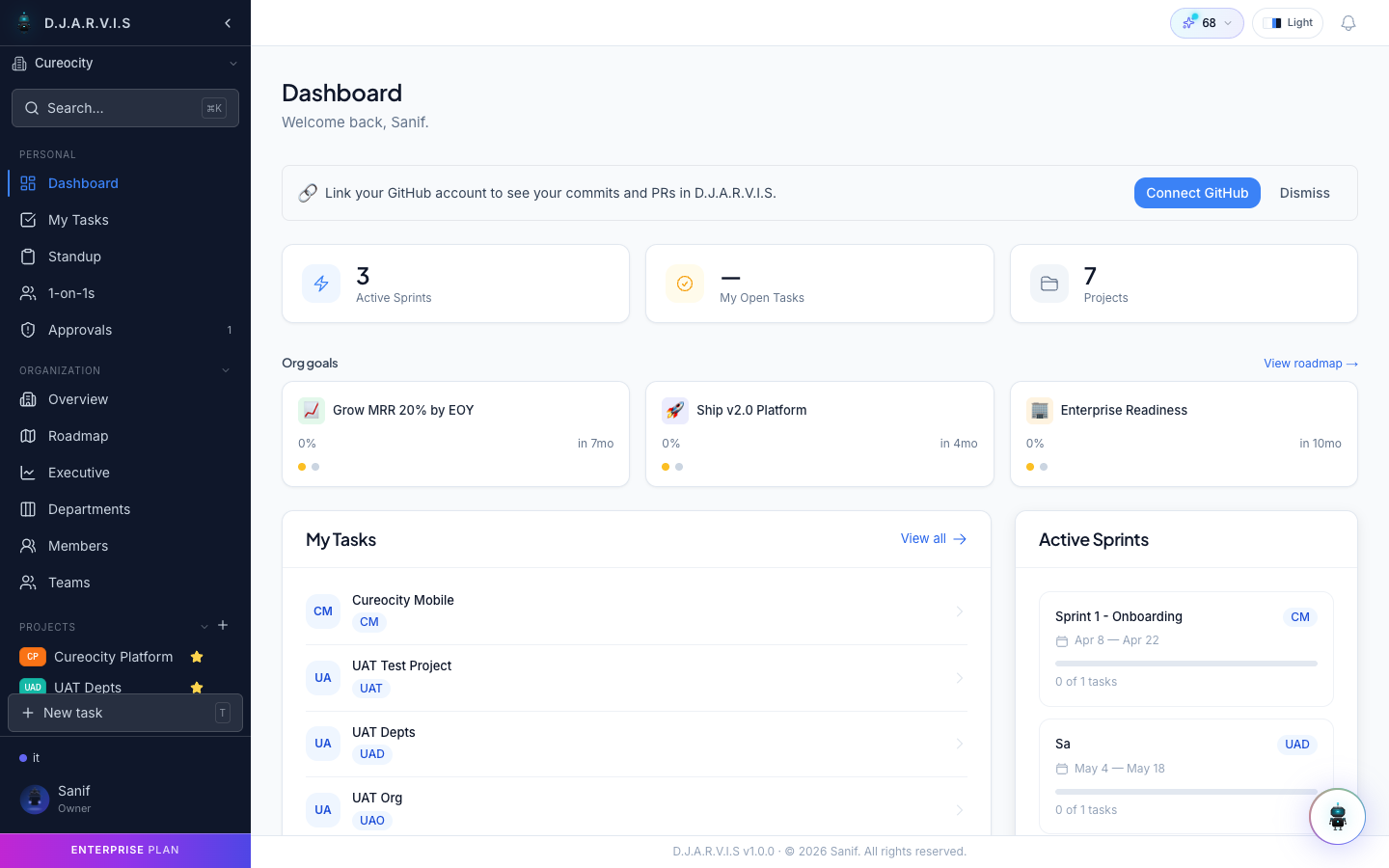
Welcome Banner
At the top of the dashboard you’ll see a greeting with your name and a summary of what needs your attention today. The banner adapts based on the time of day and surfaces any urgent items like overdue tasks or pending approvals.
GitHub Integration Prompt
If you haven’t connected your GitHub account yet, a prompt appears near the top of the dashboard encouraging you to link it. Connecting GitHub enables:
- Commit visibility — see recent commits linked to your tasks.
- PR tracking — pull request status appears directly on task cards.
- Branch creation — trigger branch creation from a task with one click.
Once connected, the prompt disappears and GitHub activity flows into your tasks and project boards automatically. You can manage the connection anytime from Settings > Integrations > GitHub.
Quick Stats Cards
Three cards sit at the top of the dashboard, each showing a single number:
| Card | What it shows |
|---|---|
| Active Sprints | The number of sprints currently in progress across all your projects |
| My Open Tasks | Total tasks assigned to you that are not yet completed |
| Projects | How many projects you’re a member of in the active organization |
These numbers update in real time. Click any card to jump to the relevant list view.
Org Goals
Below the stats you’ll find the Org Goals section. Each goal displays:
- Goal title — a short description of the objective.
- Progress bar — visual indicator of how far along the goal is, expressed as a percentage.
- Timeline — start and target end dates so you can see whether the goal is on track.
Goals are set by organization admins and pinned to the org roadmap. They provide context for why sprints and tasks exist — connecting day-to-day work to bigger objectives.
My Tasks
The My Tasks widget lists every task currently assigned to you, grouped by project. For each task you can see:
- Task title and ID.
- Current status (To Do, In Progress, In Review, etc.).
- Priority level (Critical, High, Medium, Low).
- The sprint it belongs to, if any.
Click any task to open its detail view. If you have tasks across multiple projects, they’re separated into collapsible sections so you can focus on one project at a time.
Active Sprints
The Active Sprints widget shows each sprint that’s currently running in your projects. For every sprint you’ll see:
- Sprint name and date range.
- The project it belongs to.
- A summary of task progress — how many are done versus total.
Click a sprint to go to its board view, where you can drag tasks between columns and track progress in detail.
AI Chat
A floating action button (FAB) sits in the bottom-right corner of the screen. Click it to open the AI Chat assistant. The assistant can help you with:
- Finding tasks or information across your projects.
- Getting quick summaries of sprint progress or standup history.
- Answering questions about how the app works.
AI chat uses your AI credits, which are displayed in the top bar. The chat panel slides in as an overlay so you can use it without leaving the dashboard.