API Keys
API keys give you programmatic access to Takonaut. Use them to integrate with external tools, build custom automations, or connect AI assistants through the MCP (Model Context Protocol) server.
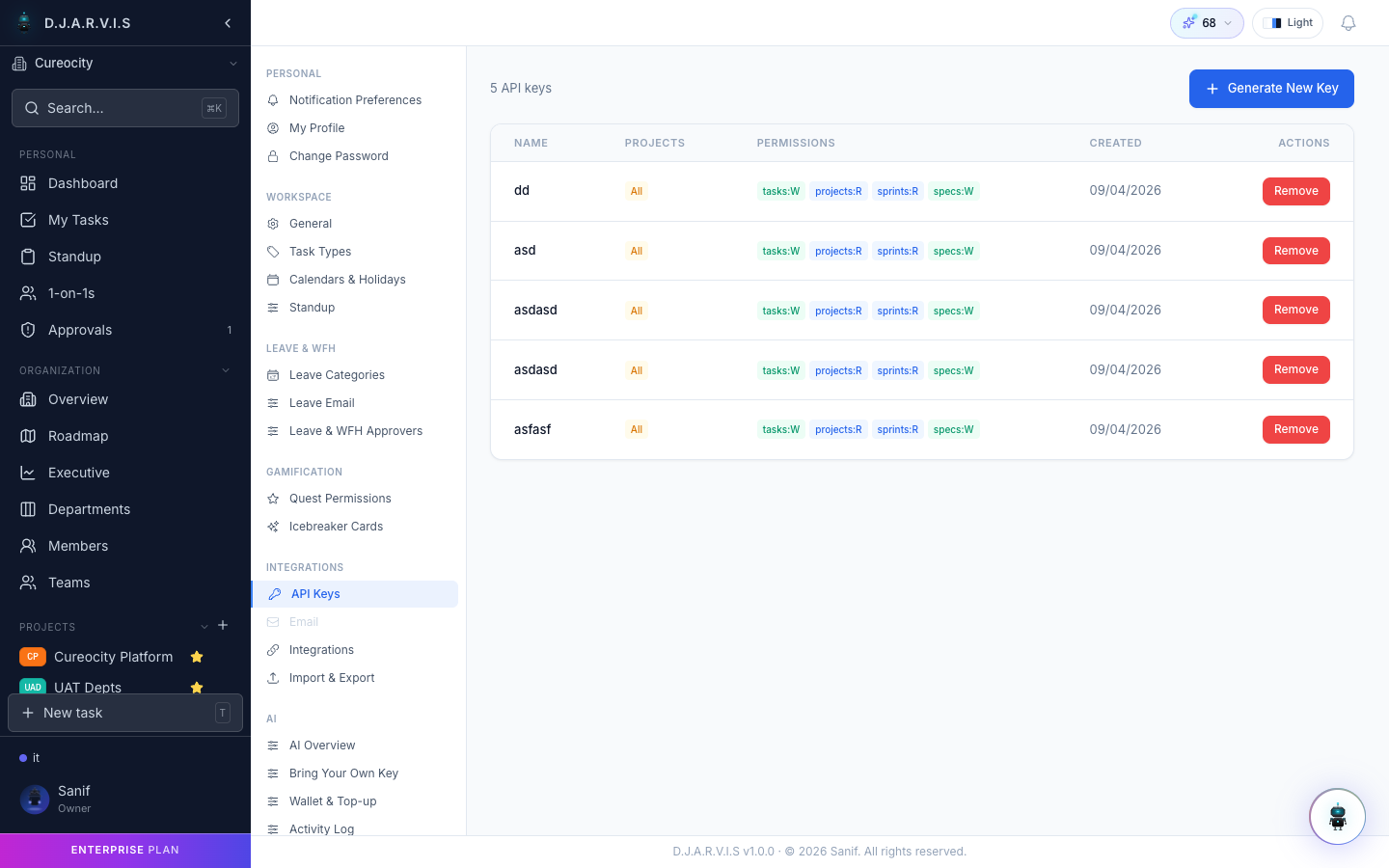
Generating an API key
- Go to Settings > API Keys.
- Click Generate Key.
- Give the key a descriptive name (e.g. “CI Pipeline”, “Claude MCP”, “Cursor IDE”).
- Copy the key immediately — it will only be shown once.
The key is tied to your user account and carries your permissions. Any action performed with the key is attributed to you and respects your role-based access.
Using the MCP Server
Takonaut provides an MCP (Model Context Protocol) server that lets AI tools interact with your project management data. This is the recommended way to connect AI assistants like Claude, Cursor, or other MCP-compatible tools.
Setup
- Generate an API key as described above.
- Configure your AI tool to connect to the Takonaut MCP server using the key.
- The AI tool can now read and write project data — creating tasks, querying sprints, submitting standups, and more — all through natural language.
What the MCP server exposes
The MCP server provides tools for:
- Tasks — create, update, assign, move, and query tasks.
- Sprints — view sprint details, auto-schedule, and manage sprint lifecycle.
- Projects — list projects, view boards, and manage backlogs.
- Standups — submit and query standup entries.
- Teams and members — view team composition and user information.
- Epics — create and manage epics with dependencies.
- Leaves and WFH — submit and approve time-off requests.
- Gamification — view wallet, XP, and reward information.
This means an AI agent with your API key can act as your assistant within Takonaut, performing routine project management tasks on your behalf.
Token-based access
API keys function as bearer tokens. Include the key in the Authorization header of your HTTP requests:
Authorization: Bearer your-api-key-hereAll standard REST API endpoints accept this authentication method. The key has the same permissions as your user account — it cannot access anything you wouldn’t be able to access through the UI.
Key lifecycle
Rotating a key
If a key may have been compromised, or as a routine security practice:
- Generate a new key.
- Update all systems that use the old key.
- Revoke the old key.
Revoking a key
- Go to Settings > API Keys.
- Find the key you want to revoke.
- Click Revoke.
Revoked keys stop working immediately. Any system using that key will receive authentication errors until updated with a new key.
Best practices
- One key per integration — generate separate keys for each tool or system. This way, revoking one key doesn’t break everything.
- Descriptive names — name keys after their purpose so you know which to revoke if needed.
- Regular rotation — periodically rotate keys, especially for keys used in shared environments.
- Never commit keys to source control — treat API keys like passwords.