Attendance
The Attendance page gives managers and team leads a consolidated view of team presence. It brings together attendance data, approved leaves, and work-from-home days into a single calendar so you always know who is available.
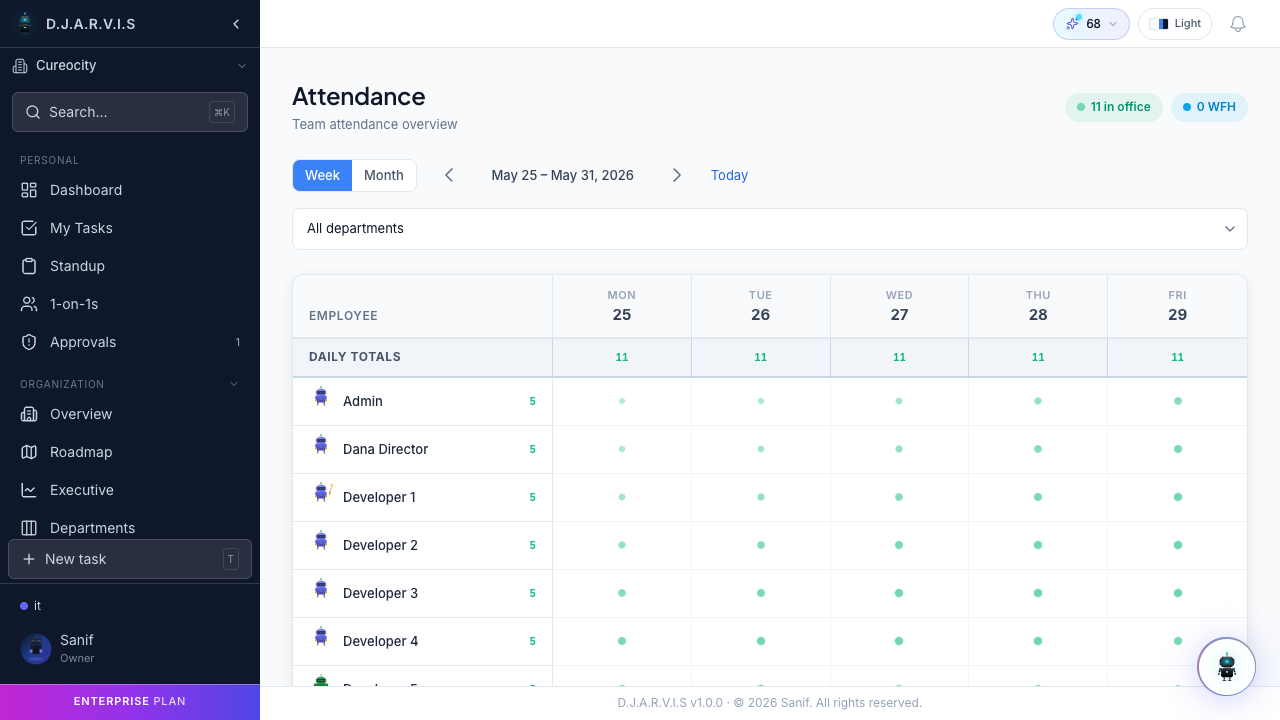
Department-level view
Attendance is organized by department. Select a department from the dropdown to see every member’s attendance status for the current period. Each row represents a team member, and each column represents a day. This makes it easy to scan across the team and spot patterns at a glance.
Managers see the departments they lead. Organization admins can view attendance across all departments.
Calendar view
The attendance calendar displays a monthly grid where each cell shows a team member’s status for that day:
- Present — the employee was in the office or logged in as expected.
- On Leave — the employee has an approved leave for that day.
- WFH — the employee has an approved work-from-home day.
- Holiday — the day is a company-wide or regional holiday.
- Absent — no attendance recorded and no approved leave or WFH.
Color-coded indicators make it easy to distinguish between statuses without reading each cell individually. You can navigate between months to review historical attendance or plan ahead.
Leave and WFH integration
The attendance calendar automatically pulls in data from the leave and WFH modules. When a team member’s leave or WFH request is approved, it appears on the attendance calendar without any manual entry. This means:
- You do not need to update attendance manually when someone is on leave or working remotely.
- The calendar always reflects the latest approved requests.
- Managers can see the full picture — attendance, leave, and WFH — in one place instead of checking three separate views.
This integration helps during sprint retrospectives and capacity planning by providing an accurate record of how many working days each team member had available during a given period.