Board View
The board is your primary workspace for tracking tasks through their lifecycle. It uses a Kanban-style layout where tasks move across columns as work progresses.
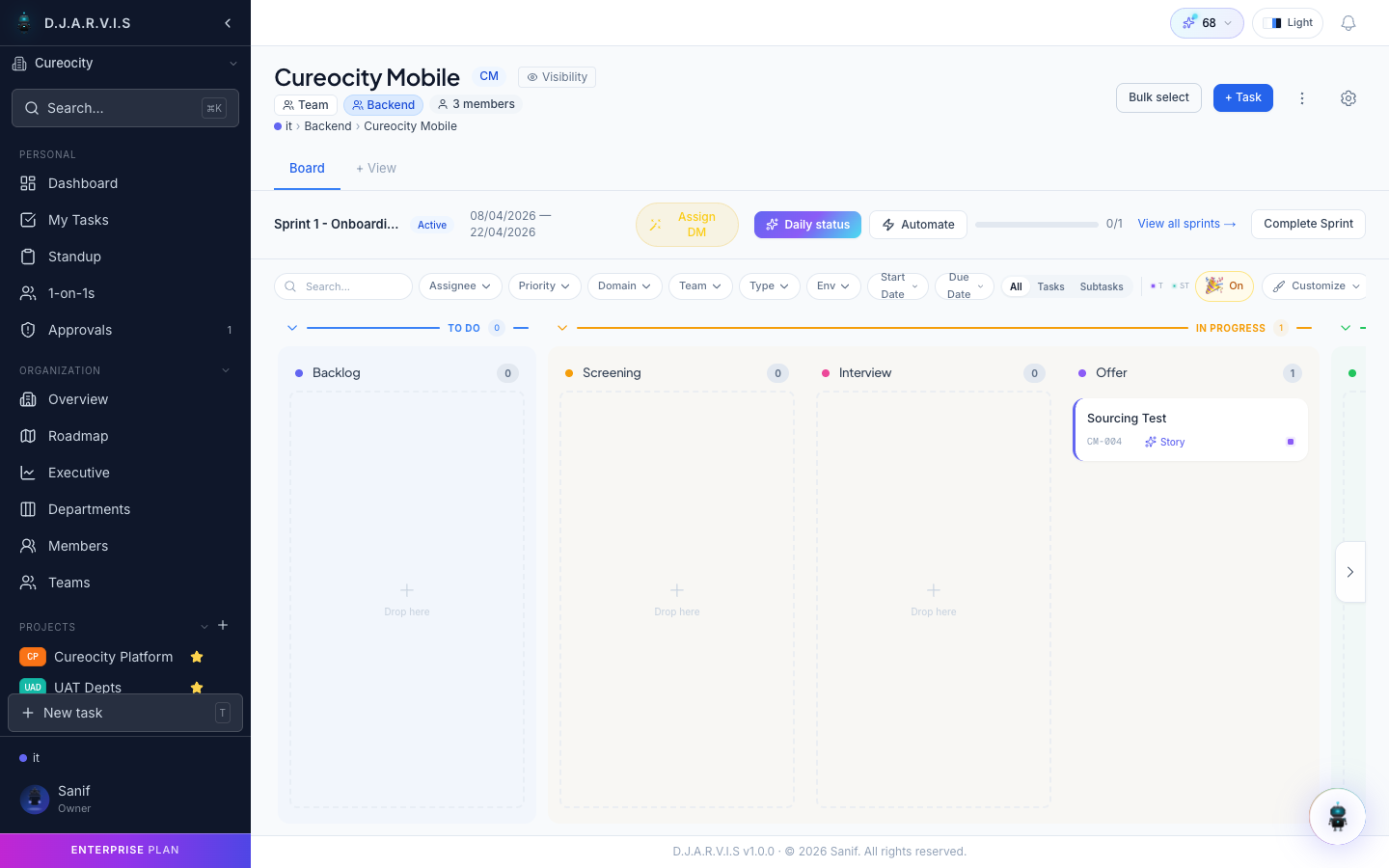
Kanban columns
By default, the board has three columns:
- To Do — tasks that have not been started.
- In Progress — tasks currently being worked on.
- Done — completed tasks.
You can customize these columns and add new ones in Project Settings.
Board tracks
Tracks are sub-columns within a main status group, allowing you to model more granular workflows without cluttering the top-level columns. For example, the In Progress column in a hiring project might have tracks for Screening, Interview, and Offer.
Tracks give you visibility into where work is stalling within a stage. Configure them from the Customize button on the board toolbar.
Task cards
Each card on the board represents a task and displays key information at a glance:
- Task ID — the project key and number (e.g.
CM-042). - Title — a short summary of the work.
- Type icon — indicates whether the item is a task, bug, story, or subtask.
- Priority — shown as a colored icon (Critical, High, Medium, Low).
- Assignee avatar — who is responsible for the task.
Click any card to open the full task detail view.
Drag and drop
Move a task between columns by dragging its card and dropping it into the target column. The task status updates automatically to match the destination column. If a column has tracks, drop the card into the specific track you want.
Sprint context
When a sprint is active, the board displays the sprint name, date range, and a progress indicator showing how many tasks are complete. Only tasks assigned to the active sprint appear on the board by default.
Use the View all sprints link in the toolbar to browse and switch between sprints, or click Complete Sprint to close the current sprint and move unfinished tasks forward.
Filters
The filter bar lets you narrow down which cards appear on the board. Available filters include:
- Assignee — show tasks assigned to specific people.
- Priority — filter by Critical, High, Medium, or Low.
- Domain — filter by domain or functional area.
- Team — show tasks belonging to a specific team.
- Type — filter by task type (Task, Bug, Story, etc.).
- Env — filter by environment (Development, Staging, Production).
- Start Date / Due Date — show tasks within a date range.
Filters can be combined. Active filters are shown as chips above the board so you can easily remove them.
View toggle
Switch between three views using the toggle in the toolbar:
- All — shows both tasks and subtasks.
- Tasks — shows only top-level tasks.
- Subtasks — shows only subtasks.
This is useful when you want to focus on high-level progress or drill into the details.
Quick actions
The board toolbar provides several quick actions:
| Action | Description |
|---|---|
| + Task | Create a new task directly on the board. It opens a quick-create form pre-filled with the current sprint and board context. |
| Bulk select | Enter selection mode to perform actions on multiple tasks at once — move, reassign, change priority, or delete. |
| Customize | Open the board customization panel to configure columns, tracks, and card display options. |
| + View | Create a custom board view with saved filter and column configurations. Useful for team-specific or workflow-specific perspectives. |
| Export project | Download project data for reporting or backup purposes. |
Bulk move with track filtering
After Bulk select, the action bar’s Move to → Column picker helps you target the right column. On boards with more than one track, the picker shows track filter pills (All plus one per track) and groups the columns under their track. If every selected task is on the same track, that track’s pill is selected automatically.
Tasks can only move to a column on their own track. Columns on other tracks still appear under All, but moving a task across tracks is rejected — the action bar reports any such tasks in its result summary.
Board settings
Click the gear icon to access board-level settings. This includes column configuration, default filters, and display preferences. See Project Settings for full details.
Celebrations
Toggle the Celebrations option to enable confetti animations when a task is moved to the Done column. A small reward for finishing work — turn it on or off based on your team’s preference.
Delivery Manager
Click Assign DM to designate a Delivery Manager for the project. The DM role is used for sprint oversight, standup tracking, and team health monitoring. The DM receives dedicated views and notifications related to delivery progress.
Daily status
The Daily status button opens the standup submission form, where you can log what you worked on, what you plan to do, and any blockers. This is tied to the Ceremonies workflow.
Automate
Click Automate to configure workflow automation rules for the board. Automations can trigger actions when tasks change status, are assigned, or meet other conditions. See Project Settings for more on automation configuration.