Integrations
Takonaut connects with the tools your team already uses. Integrations are managed from Settings > Integrations.
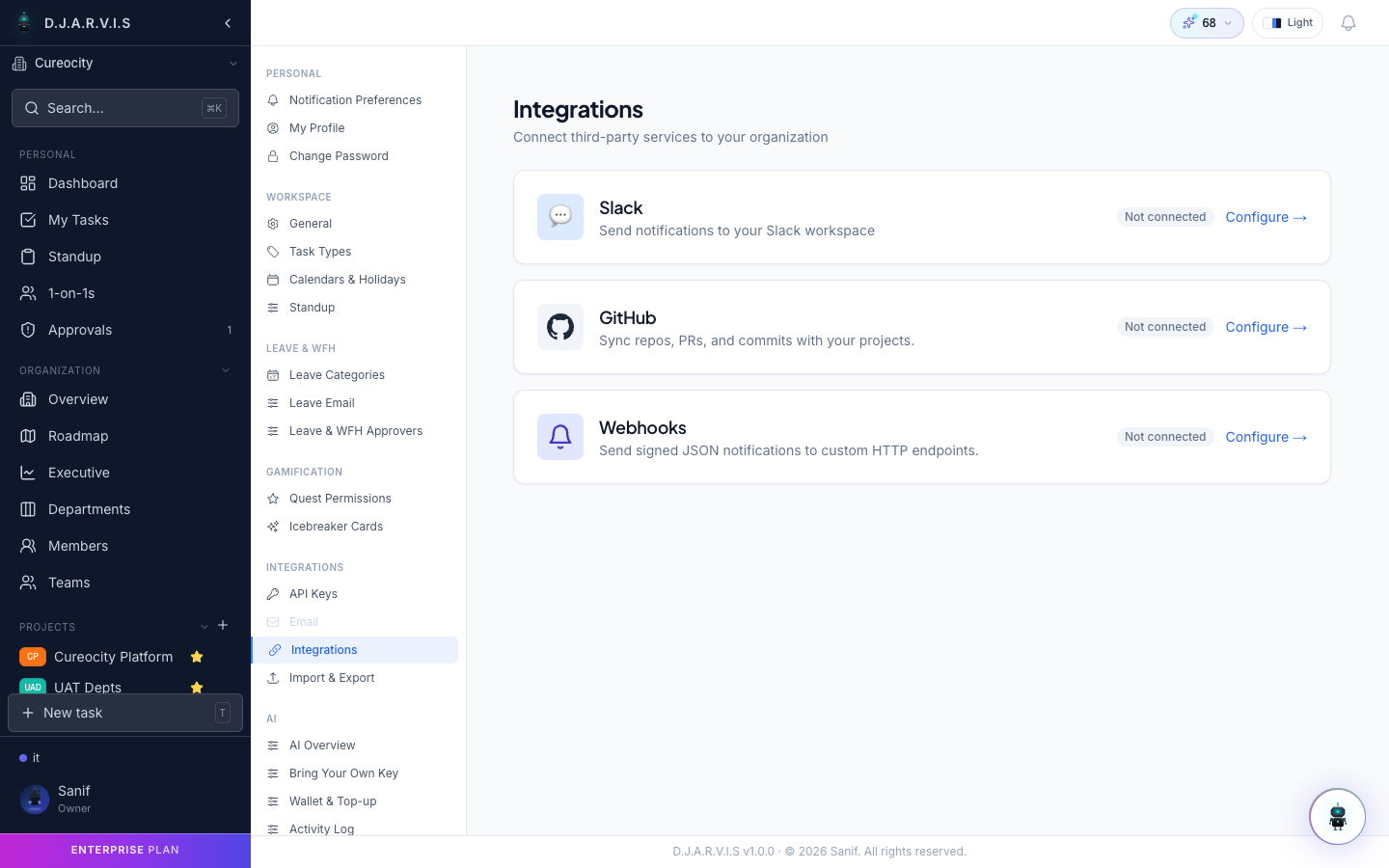
GitHub
The GitHub integration brings your code activity into your project management workflow. Once connected, you get commit visibility, PR tracking, and branch creation — all without leaving Takonaut.
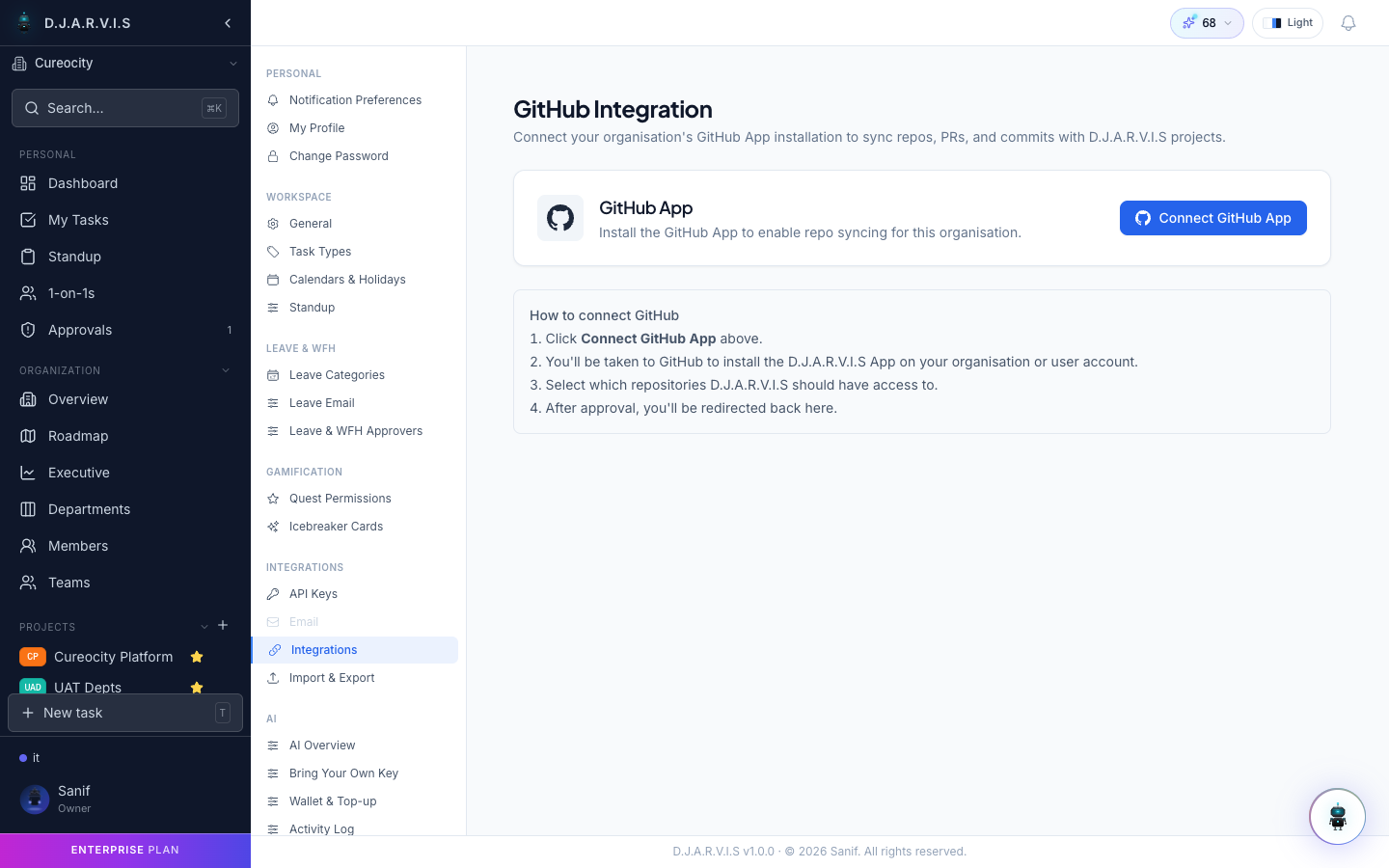
Linking a repository
- Go to Settings > Integrations > GitHub.
- Click Link Repository.
- Authorize Takonaut to access your GitHub organization.
- Select the repositories you want to link to specific projects.
Each repository is linked to one project. You can link multiple repositories to the same project if needed.
What you get
- Commits on tasks — commits that reference a task ID (e.g.
CM-042in the commit message) automatically appear on that task’s detail page. - PR tracking — pull requests linked to tasks show their status (open, merged, closed) directly on the task card.
- Branch creation — click the branch icon on any task to trigger branch creation in the linked repository. The branch name follows your project’s naming convention automatically.
- Auto-linking — branches that include a task ID in their name are automatically linked to the corresponding task.
Personal GitHub linking
Individual developers can also link their personal GitHub accounts from Settings > Profile. This enables the system to attribute commits and PRs to the correct user, even if they use a different email on GitHub.
Slack
Connect Slack to receive notifications and updates directly in your team’s channels.
- Notification channels — route specific event types (task assignments, sprint starts, standup reminders) to designated Slack channels.
- Standup summaries — send daily standup synthesis to a channel so the whole team can read the digest without opening the app.
- Interactive actions — respond to certain notifications directly from Slack.
Webhooks
For custom integrations, you can configure outgoing webhooks that fire when events occur in Takonaut.
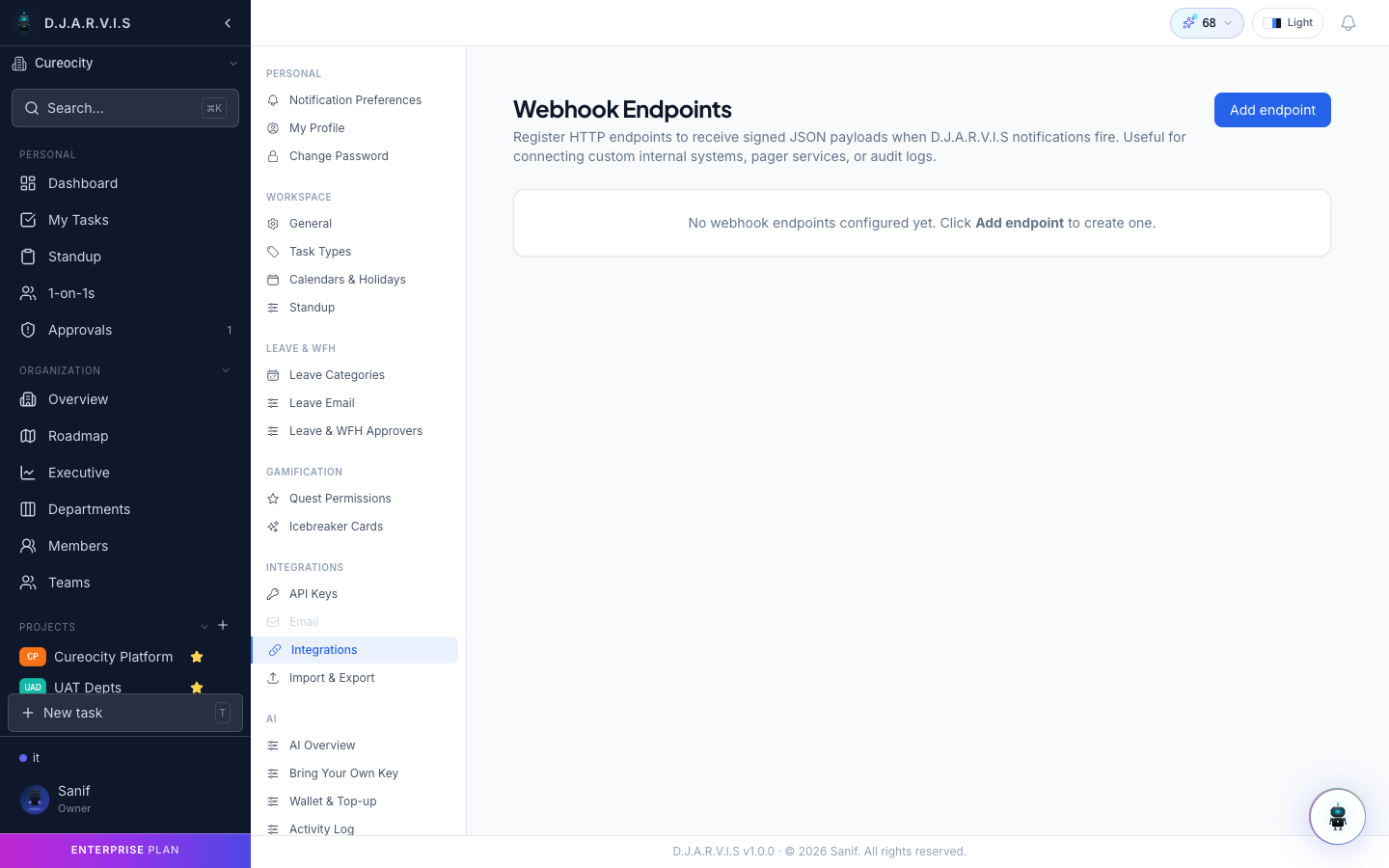
Setting up a webhook
- Go to Settings > Integrations > Webhooks.
- Click Add Webhook.
- Enter the endpoint URL where you want events sent.
- Select which events should trigger the webhook (e.g. task created, sprint started, standup submitted).
- Save the webhook.
Webhook payload
Each webhook sends a JSON payload containing:
- Event type — what happened (e.g.
task.created,sprint.started). - Timestamp — when the event occurred.
- Data — the full object that was created or modified.
- Actor — the user who triggered the event.
You can use webhooks to integrate with CI/CD pipelines, external dashboards, Zapier, or any system that accepts HTTP callbacks.