Workflows
Workflows let you automate repetitive actions in Takonaut. Instead of manually updating fields, sending notifications, or reassigning tasks every time something happens, you define rules and the system handles it.
How workflows work
A workflow rule follows a simple pattern: when something happens, do something in response. Each rule has:
- Trigger — the event that starts the workflow.
- Conditions (optional) — filters that determine whether the action should run.
- Action — what the system does when the trigger fires and conditions are met.
Workflow rules
Create and manage rules from Settings > Workflows > Rules.
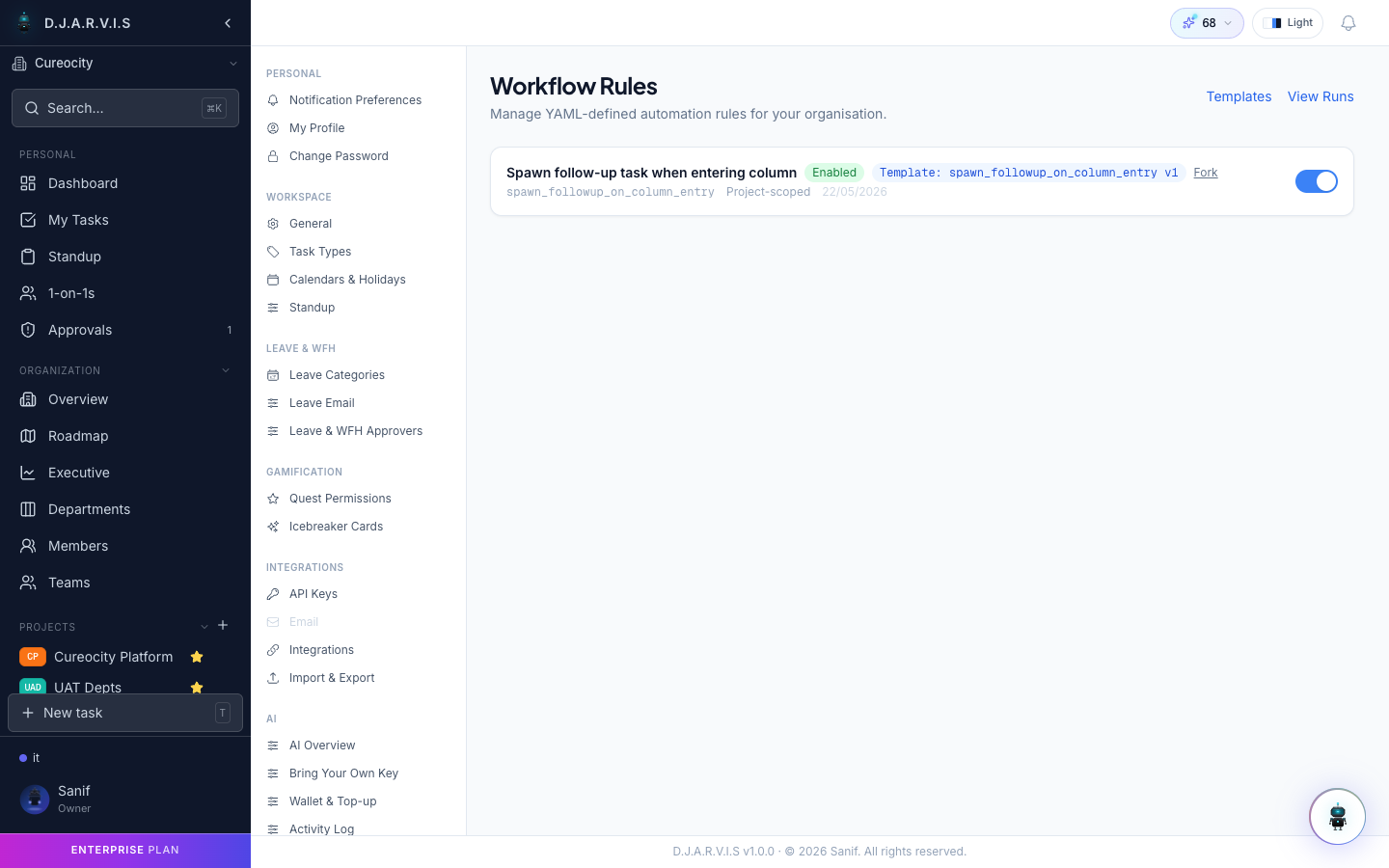
Creating a rule
- Click Add Rule.
- Select a trigger event.
- Optionally add conditions to narrow when the rule fires.
- Choose one or more actions.
- Name the rule and save it.
Rules can be enabled or disabled at any time without deleting them.
Available triggers
| Trigger | Fires when |
|---|---|
| Task status change | A task moves from one status to another |
| Task assignment | A task is assigned or reassigned |
| Task creation | A new task is created |
| Sprint start | A sprint begins |
| Sprint end | A sprint reaches its end date |
| Standup submitted | A team member submits their daily standup |
| PR linked | A pull request is linked to a task |
| Blocker added | A task is marked as blocked |
Available actions
| Action | What it does |
|---|---|
| Send notification | Notify a user, channel, or webhook endpoint |
| Assign task | Automatically assign the task to a specific user or role |
| Move task | Change the task’s status to a specified column |
| Update field | Set or change a field value (priority, labels, story points, etc.) |
| Add comment | Post an automated comment on the task |
| Trigger webhook | Send a payload to an external URL |
| Create follow-up card | Spawn a new linked task when the triggering task meets the rule’s conditions |
Follow-up card automation
The Create follow-up card action (task.create_followup) spawns a new linked task each time the rule fires. This is useful for recurring checklists, handoff tasks, or any pattern where completing one card should immediately queue up another.
The follow-up card is a full task in its own right — it gets its own ID, status, and fields — and is linked back to the task that triggered it.
Conditional assignee
By default, a follow-up card is either unassigned or assigned to a fixed user. With the conditional assignee strategy you can pick the assignee dynamically based on the source task’s fields at the moment the rule fires.
How it works
When the rule runs, the system evaluates an ordered list of branches. Each branch has:
when— one or more field conditions (all must be true for the branch to match; they are AND-combined).assignee— who to assign the follow-up card to if this branch matches.
The engine walks the list from top to bottom and assigns using the first branch that matches. If no branch matches:
- A
defaultassignee is used if one is configured. - If there is no default, the follow-up card is created unassigned.
Source task fields
Conditions are written against the source task using task.* paths:
| Field path | Notes |
|---|---|
task.priority | low, medium, high, urgent |
task.team_id | UUID of the team the task belongs to |
task.labels | List of label strings — use contains or in operators |
task.sprint_id | UUID of the active sprint |
task.epic_id | UUID of the parent epic |
task.track_id | UUID of the board track (swimlane) the source card is in |
task.stage | The current board column / status name |
task.story_points | Numeric estimate |
task.custom_fields.<slug> | Any custom field by its slug, e.g. task.custom_fields.squad |
Operators
| Operator | Description |
|---|---|
== | Exact match |
!= | Does not match |
in | Value is one of a list |
contains | List field contains the value (use for task.labels) |
> | Greater than (numeric fields) |
< | Less than (numeric fields) |
Assignee types
Each branch’s assignee (and the default) is one of:
| Type | Meaning |
|---|---|
explicit | A specific named user (identified by their user UUID) |
source_assignee | Whoever is currently assigned to the source task |
unassigned | Leave the follow-up card unassigned |
Org-membership requirement: explicit assignees must be active members of the organization the rule belongs to. Rules that reference a non-member or an inactive member are rejected at save time. At execution time, if the resolved assignee is no longer an active member of the organization, the follow-up card is silently left unassigned rather than failing the automation.
Example configuration
assignee_strategy:
  type: conditional
  branches:
    - when:
        - {field: task.priority, op: "==", value: high}
      assignee: {type: explicit, user_id: "<user-uuid>"}
    - when:
        - {field: task.custom_fields.squad, op: "==", value: flutter}
      assignee: {type: explicit, user_id: "<user-uuid>"}
  default: {type: source_assignee}
In this example:
- High-priority source tasks assign the follow-up to a specific user (the first branch).
- Tasks on the flutter squad assign to a different explicit user (the second branch).
- Everything else keeps the same assignee as the source task (
source_assigneedefault).
You can combine multiple conditions in a single branch to narrow the match further — for example, require both a specific priority and a specific team:
- when:
    - {field: task.priority, op: "==", value: urgent}
    - {field: task.team_id, op: "==", value: "<team-uuid>"}
  assignee: {type: explicit, user_id: "<on-call-user-uuid>"}
Workflow templates
Takonaut includes pre-built templates for common automation scenarios. Templates provide a starting point — you can use them as-is or customize them to fit your process.
Examples of built-in templates:
- Auto-assign reviewer — when a task moves to “In Review”, assign it to the team’s designated reviewer.
- Sprint rollover notification — when a sprint ends, notify the project manager about unfinished tasks.
- Blocker escalation — when a task is blocked for more than 24 hours, notify the team lead.
- Welcome assignment — when a new member joins a project, create an onboarding task assigned to them.
To use a template, go to Settings > Workflows > Templates, select one, review the configuration, and activate it.
Run history
Every time a workflow rule fires, it is logged. The run history shows:
- Timestamp — when the rule was triggered.
- Rule name — which rule fired.
- Trigger event — what caused it.
- Outcome — whether the action succeeded or failed.
- Details — the specific data involved (e.g. which task, which user).
Use the run history to verify that your rules are working as expected and to debug any issues.