Getting Started
This guide walks you through signing in to Takonaut and finding your way around the interface.
Authentication
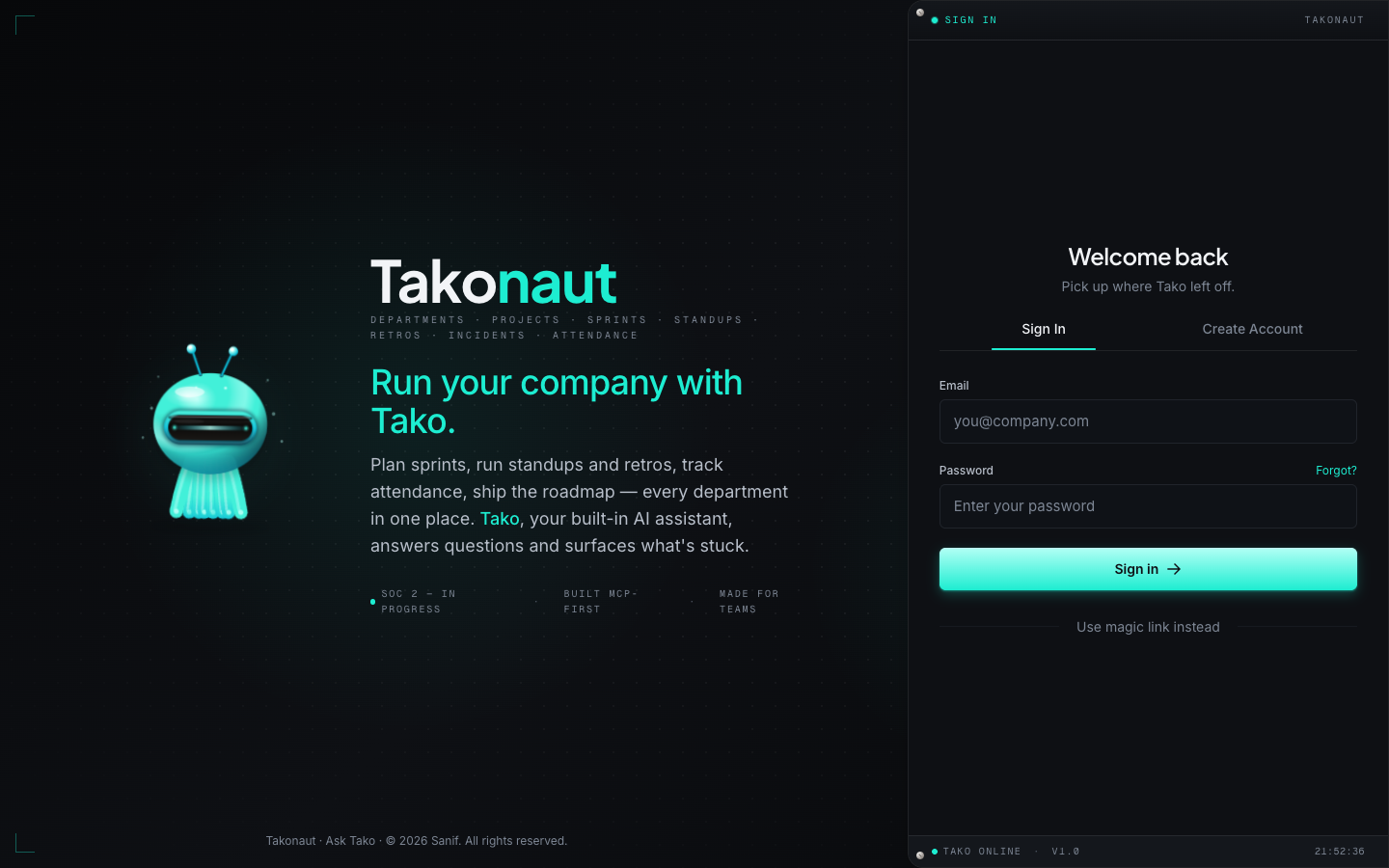
The login screen offers two ways to sign in:
- Email and password — enter your credentials and click Sign In.
- Magic link — enter your email and receive a one-time login link. No password required.
If you don’t have an account yet, click Create Account to register with your name, email, and a password. Your organization admin may also invite you by email, in which case you’ll receive a link that creates your account automatically.
First-Time Onboarding
After your first login you’ll land on a short onboarding flow that collects a few basics — your display name, role, and timezone. Once that’s done you’re dropped straight into the dashboard.
If your organization has already been set up, you’ll see your projects, sprints, and tasks immediately. If you’re the first user, you’ll be guided through creating your organization and first project.
Dashboard Overview
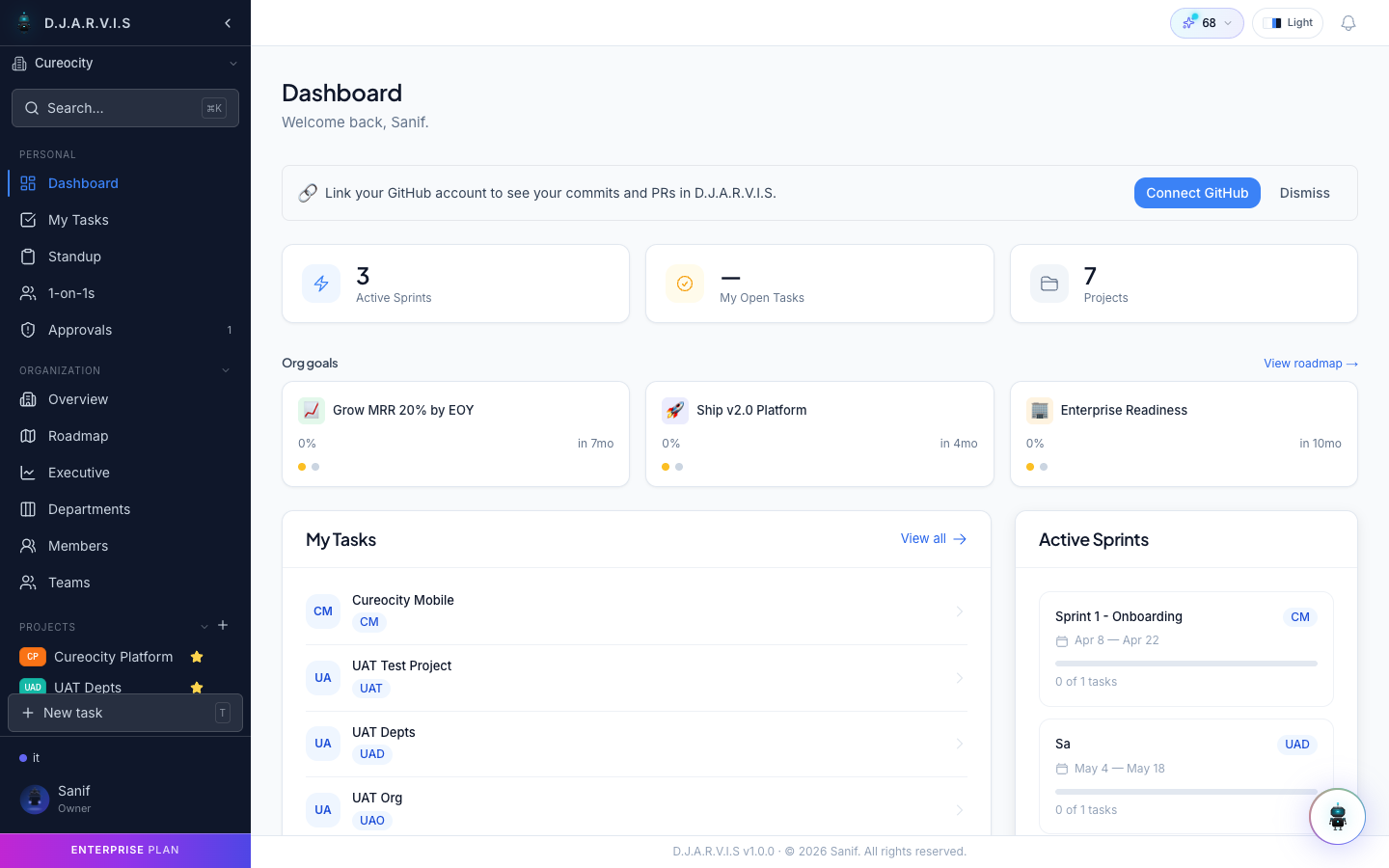
The dashboard is your home base. It shows a real-time snapshot of everything that matters to you:
- Active Sprints — how many sprints are currently running across your projects.
- My Open Tasks — the number of tasks assigned to you that still need work.
- Projects — total projects you’re a member of.
- Org Goals — organization-wide objectives with progress bars and target dates.
- My Tasks — a grouped list of your assigned tasks broken down by project.
- Active Sprints widget — details of each running sprint so you can jump in quickly.
See the Dashboard page for a full breakdown of every widget.
Sidebar Navigation
The sidebar is the main way to move around the app. It’s organized into logical sections:
Personal
| Item | What it does |
|---|---|
| Dashboard | Your home page with stats, tasks, and sprint summaries |
| My Tasks | Every task assigned to you, filterable by project, status, and priority |
| Standup | Submit daily standups and view your team’s updates |
| 1-on-1s | Schedule and track one-on-one meeting topics with your manager or reports |
| Approvals | Pending leave, WFH, and other requests waiting for your action |
Organization
| Item | What it does |
|---|---|
| Overview | High-level org stats — headcount, active projects, sprint velocity |
| Roadmap | Organization-wide epics and milestones on a timeline view |
| Executive | Executive-level reports and KPIs |
| Departments | Browse and manage departments |
| Members | Full member directory with roles and permissions |
| Teams | Cross-functional teams and their members |
Projects
Your projects are listed directly in the sidebar for one-click access. Each project links to its board, backlog, sprints, and settings.
Other Sections
- Rewards — Gamification hub: leaderboard, shop, quests, and your wallet.
- Time Off — Apply for leave or WFH, view your balances, and check the team calendar.
- Settings — Personal profile, organization settings, integrations, workflows, and admin controls.
Organization Switcher
If you belong to more than one organization, the org switcher sits at the top of the sidebar. Click it to see all your organizations and switch between them instantly. Everything in the app — projects, tasks, sprints, members — is scoped to the active organization.
Global Search (Cmd+K)
Press Cmd+K (or Ctrl+K on Windows/Linux) to open the command palette. From here you can:
- Search for tasks, projects, sprints, and members by name or ID.
- Jump to any page in the app.
- Access recent items quickly.
Results appear as you type — select one and press Enter to navigate directly.
Quick Task Creation
Need to capture something fast? Two options:
- Press the T key anywhere in the app to open the quick-create task dialog.
- Click the + New Task button visible in the sidebar or on project boards.
The dialog lets you set a title, assign a project, pick a priority, and optionally assign it to someone — all without leaving your current page.
Theme Toggle
Takonaut supports light and dark themes. Toggle between them using the sun/moon icon in the top navigation bar. Your preference is saved per-user and persists across sessions.
AI Credits
The top bar displays your remaining AI credits. These credits are consumed when you use AI-powered features like the AI chat assistant, smart task suggestions, or automated standup summaries. Click the credits indicator to view your usage history or purchase more through the gamification shop.