Standups
Daily standups keep your team aligned. Every team member shares what they accomplished, what they plan to work on next, and anything blocking their progress. Takonaut turns this ritual into a structured, trackable process with streaks, nudges, and AI-powered summaries.
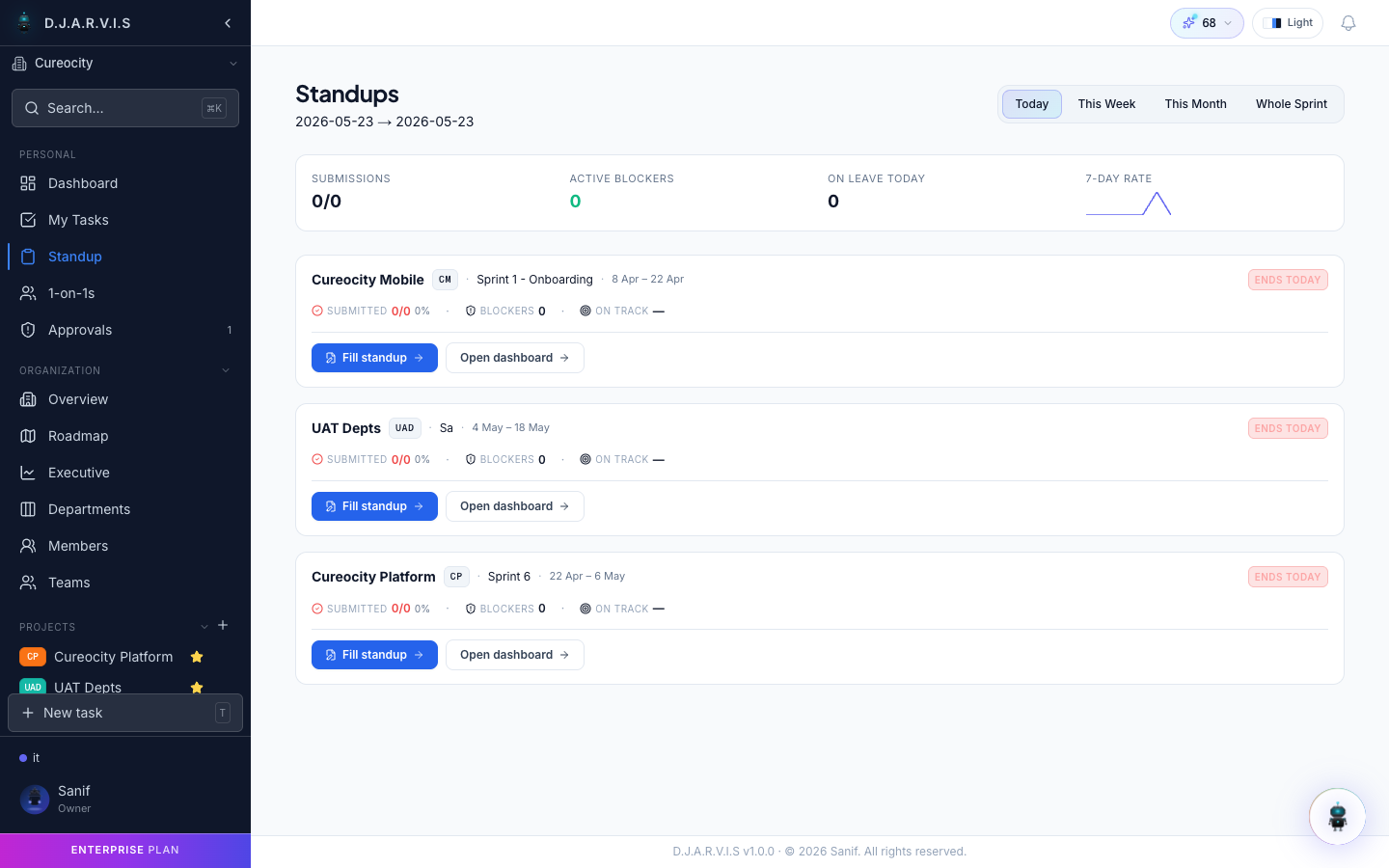
Standup dashboard
The standup dashboard gives you an org-wide view of all team standups for the day. At a glance you can see which teams have submitted, who is missing, and what blockers have been raised across the organization.
Each team’s section shows a summary row with the submission count and a list of individual standups. Click into any standup to read the full update.
Managers and team leads can use the dashboard to spot patterns — if the same blocker keeps appearing across multiple teams, it is probably worth escalating.
Submitting a standup
Navigate to Standup in the sidebar or open the standup page from the dashboard. You will see three text fields:
| Field | What to write |
|---|---|
| Yesterday | What you completed since your last standup. |
| Today | What you plan to work on today. |
| Blockers | Anything preventing you from making progress. Leave blank if you have none. |
Fill in each section and click Submit. Your standup is immediately visible to your team and appears on the standup dashboard.
You can edit a submitted standup until the end of the day. After that it becomes read-only and part of your standup history.
Sprint standup
When viewing a sprint board, you can submit a sprint standup — a standup scoped specifically to that sprint’s tasks. Instead of free-text fields, the sprint standup pulls your assigned tasks from the board and lets you update progress on each one directly.
This is especially useful during active sprints where your daily work maps directly to board tasks. Access it from the sprint board’s standup button.
Standup streaks
Takonaut tracks your consecutive standup submissions as a streak. Submit every working day to keep your streak alive. The longer your streak, the more XP and recognition you earn through the gamification system.
Your current streak count is visible on your standup page and on the gamification leaderboard. Breaking a streak resets your count to zero — so set a reminder if you need one.
Blocker escalation
When you add a blocker to your standup, it is flagged for visibility across the team. Blockers appear prominently on the standup dashboard so managers and leads can spot them without reading every individual update.
Blockers can be linked to specific tasks, making it easy to trace what work is stalled and why. Recurring blockers across multiple team members are highlighted to help leadership identify systemic issues.
Standup nudges
If a team member hasn’t submitted their standup by a certain time, managers and team leads can send a nudge — a gentle reminder notification prompting them to submit.
Nudges can be sent manually from the standup dashboard by clicking the nudge icon next to any team member who hasn’t submitted yet. The recipient receives an in-app notification.
Standup history
Every standup is saved and searchable. Navigate to the standup history view to browse past submissions by date, team member, or team. This is useful for:
- Performance reviews — see a team member’s consistency and contributions over time.
- Sprint reviews — understand what the team worked on day by day during a sprint.
- Blocker analysis — identify recurring blockers that need structural fixes.
Use the date picker and filters to narrow the view to a specific period or person.
AI standup synthesis
Takonaut can generate an AI summary of your team’s standups. Instead of reading every individual update, the AI synthesizes all submissions into a concise summary covering:
- Key accomplishments across the team.
- Common themes in planned work.
- Active blockers and who is affected.
The summary is generated on demand and consumes AI credits. It is especially valuable for managers overseeing multiple teams who need a quick digest without reading dozens of individual standups.
Standup settings
Organization admins can configure standup behavior from Settings > Standups:
- Templates — customize the standup fields. You can rename sections, add extra fields, or adjust placeholder text to match your team’s workflow.
- Frequency — set how often standups are expected (daily, specific days of the week, etc.).
- Reminders — configure automatic reminders so team members are prompted to submit at a set time each day.
These settings apply at the organization level and affect all teams.