Leaves
Takonaut includes a full leave management system so your team can request time off, managers can approve or reject requests, and everyone can see who is away at a glance.
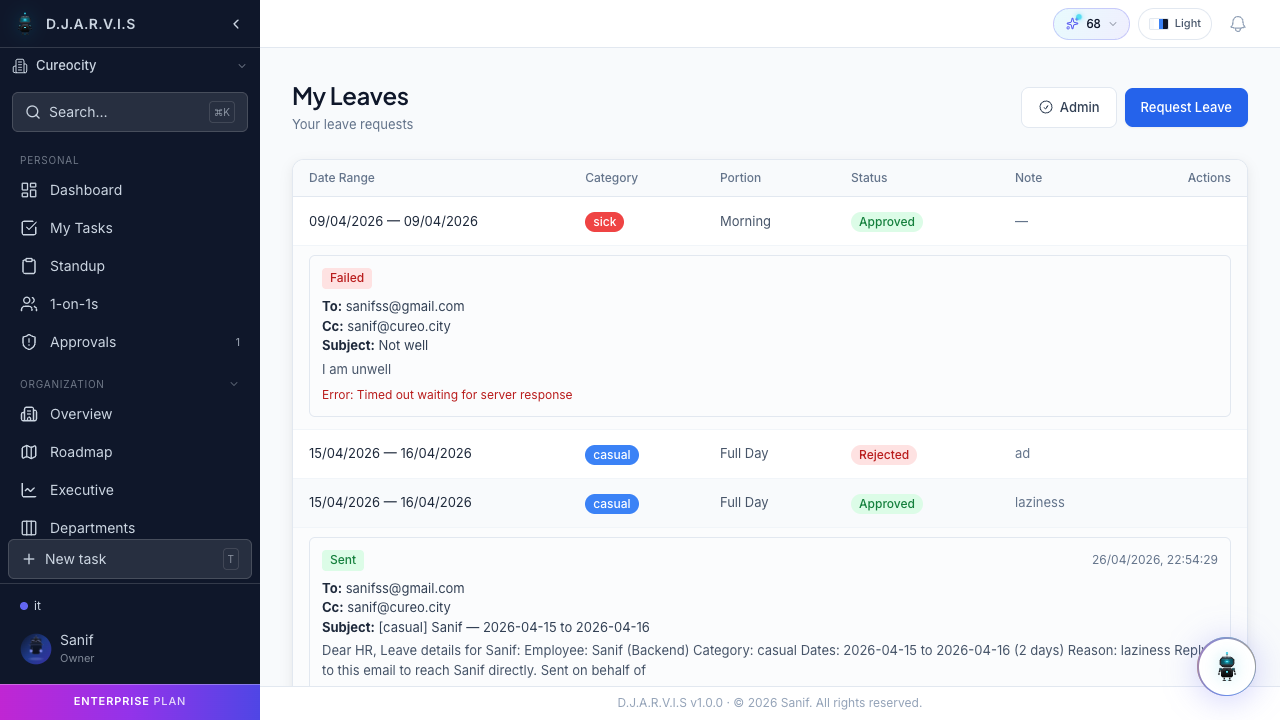
Applying for leave
To request time off:
- Open Time Off > Leaves from the sidebar.
- Click Apply for Leave.
- Fill in the request form:
| Field | Description |
|---|---|
| Leave category | The type of leave you are requesting (see below). |
| Start date | The first day of your leave. |
| End date | The last day of your leave. For a single day, this matches the start date. |
| Half day | Toggle this on if you only need half the day off. Select whether it is the first half or second half. |
| Reason | A short explanation for your time off. This is visible to your approving manager. |
Click Submit to send the request for approval.
Leave categories
Leave categories define the different types of time off available in your organization. Common categories include:
- Casual Leave — for personal errands, appointments, or short breaks.
- Sick Leave — for illness or medical appointments.
- Earned Leave — accrued over time based on tenure, typically used for planned vacations.
- Compensatory Off — granted in exchange for working on weekends or holidays.
Your organization admin configures which categories are available and how many days each employee gets per year. You can view your available categories when filling out a leave request. To customize categories, go to Settings > Leave Categories.
Half-day leaves
Sometimes you only need a few hours off rather than a full day. When applying for leave, toggle the Half Day option to request either the first half or second half of a single day. Half-day leaves consume 0.5 days from your leave balance instead of a full day.
Leave approval workflow
Every leave request follows a simple approval flow:
- Submitted — you submit the request.
- Pending Approval — the request is waiting for your manager to review it.
- Approved or Rejected — the manager takes action on the request.
You can see the current status of all your requests on the Leaves page. If your request is rejected, the manager can include a reason so you know why.
Leave balance
Your leave balance shows how many days you have remaining in each leave category. The balance is displayed on the Leaves page and updates automatically as requests are approved.
Each category has an annual allocation set by your organization admin. For example, you might have 12 Casual Leave days, 10 Sick Leave days, and 15 Earned Leave days per year. As you take leave, the balance decreases accordingly. Half-day leaves deduct 0.5 days from the balance.
Leave admin
Managers and admins can approve or reject pending leave requests from the Approvals section in the sidebar. When reviewing a request you can see:
- Who is requesting the leave.
- The leave category, dates, and reason.
- The employee’s remaining balance in that category.
Click Approve to grant the leave or Reject to deny it. You can add a note when rejecting to explain the decision.
Leave calendar
The leave calendar provides a visual overview of who is off and when. Open it from the Time Off section to see approved leaves plotted on a monthly calendar. Each entry shows the employee name, leave type, and duration.
The calendar is useful for:
- Sprint planning — checking team availability before committing to work.
- Coverage planning — making sure critical roles are covered during absences.
- Spotting conflicts — seeing if too many people on the same team are off at once.
Email notifications
Takonaut sends automated email notifications at each stage of the leave process:
- Leave requested — your manager receives an email when you submit a new request.
- Leave approved — you receive an email when your manager approves the request.
- Leave rejected — you receive an email when your manager rejects the request, along with the rejection reason if one was provided.
Notification preferences can be managed in your account settings.