Task Details
When you click on a task from the board or any task list, the full task detail page opens. This is where you manage everything about a single task.
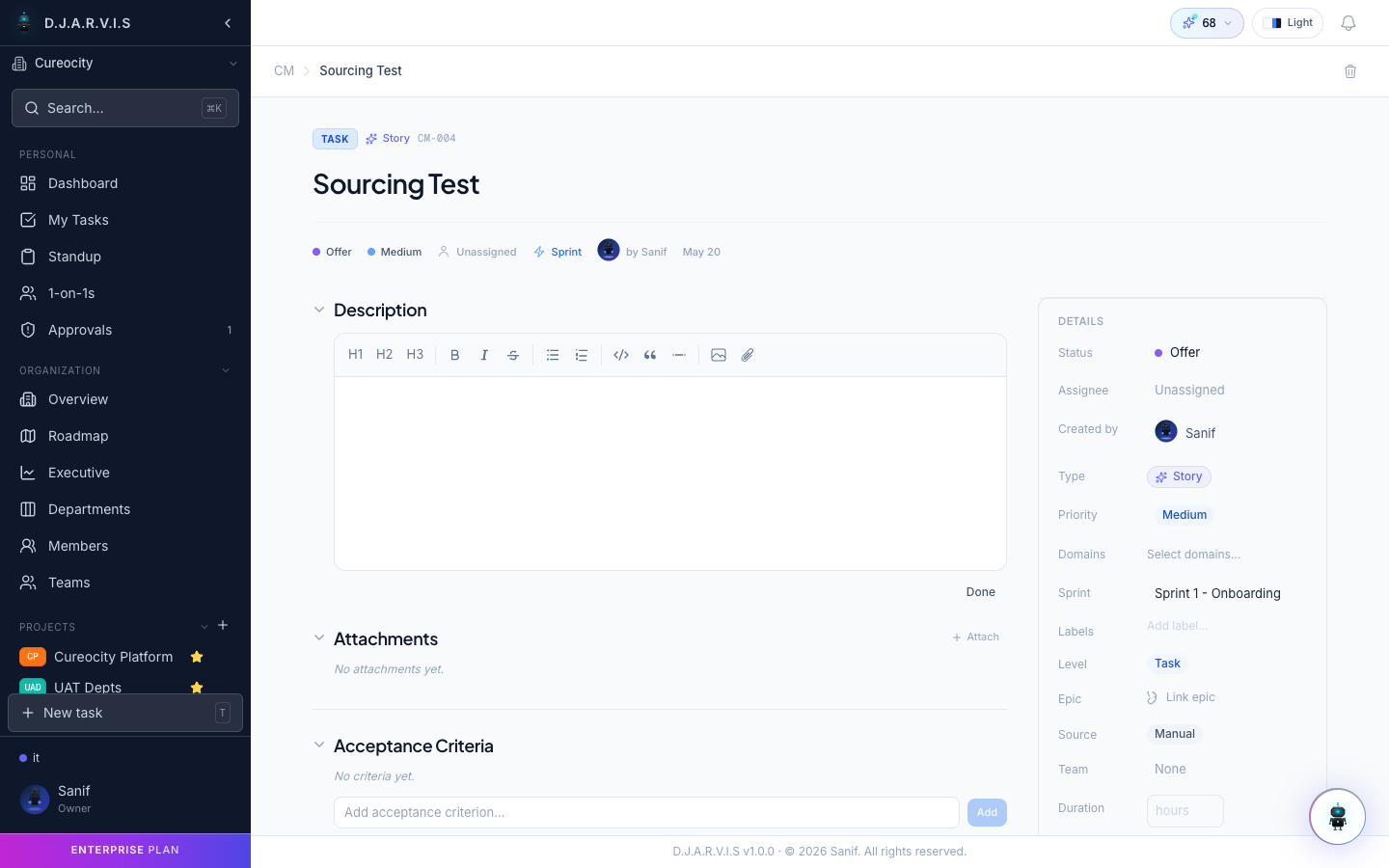
Task header
The top of the page shows:
- Task ID — the project key and number (e.g.,
CM-004). Click the ID to copy it to your clipboard for quick reference in messages or commits. - Title — click to edit inline.
- Status badge — the current status, matching the board column. Click to move the task to a different status.
- Type badge — a colored icon indicating the task type (Feature, Bug, etc.).
Description
The description area supports a rich text editor. Use it for detailed requirements, acceptance criteria, reproduction steps, or any context the assignee needs. The editor supports headings, lists, code blocks, links, and inline formatting.
Properties panel
The right-hand panel contains all task metadata. Each field is editable inline:
| Property | Description |
|---|---|
| Assignee | The team member responsible for completing the task. |
| Reporter | The person who created the task. Set automatically but can be changed. |
| Priority | Low, Medium, High, or Urgent. |
| Sprint | The sprint this task is scheduled in. |
| Epic | The parent epic this task contributes to. |
| Story points | Effort estimate for sprint planning and velocity tracking. |
| Start date | When work is expected to begin. |
| Due date | The deadline for the task. |
Checklists
Add a checklist to break the task into granular steps without creating full subtasks. Checklists are useful for tracking small items like “update tests,” “notify stakeholders,” or “deploy to staging.”
Click Add checklist item to add items. Check them off as you complete them. A progress indicator shows how many items are done.
Subtasks
Click Add subtask to create a child task. Subtasks are full tasks with their own IDs, statuses, and assignees. They appear in a list within the parent task so you can track progress in one place.
See Tasks Overview for more on subtasks.
Attachments
Upload files directly to a task by clicking the attachment area or dragging files onto the task detail page. Attachments are useful for designs, screenshots, documents, or any reference material the assignee needs.
Activity feed
The activity feed is a chronological timeline at the bottom of the task detail page. It records:
- Status changes — when the task moved between columns.
- Field updates — changes to priority, assignee, sprint, story points, etc.
- Comments — team discussion about the task. Mention teammates with
@to notify them. - Checklist updates — items checked or unchecked.
Every entry is timestamped so you can see the full history of a task from creation to completion.
Watchers
Click the watch icon to subscribe to notifications for a task. Watchers receive updates when the task status changes, when someone comments, or when fields are modified.
The task creator and assignee are added as watchers automatically. Other team members can opt in by clicking the watch button.
Task bounty
Takonaut includes a gamification system where tasks can carry coin bounties. A project lead or task creator can set a bounty on a task, and the assignee earns those coins when the task is marked as complete.
Bounties are displayed on the task detail page next to the properties panel. See Gamification for more on coins and rewards.
GitHub links
If your project is connected to a GitHub repository, linked pull requests and commits appear on the task detail page. This gives reviewers full context — they can jump from the task to the PR and back without searching.
PRs are linked automatically when the task ID appears in the branch name or PR title, or you can link them manually from the task detail page.
Copy task ID
Click the task ID in the header to copy it to your clipboard. Use the copied ID to reference the task in Slack messages, commit messages, PR descriptions, or anywhere else your team communicates.