Tasks Overview
Tasks are the core unit of work in Takonaut. Every bug fix, feature, chore, and improvement is tracked as a task within a project.
My Tasks
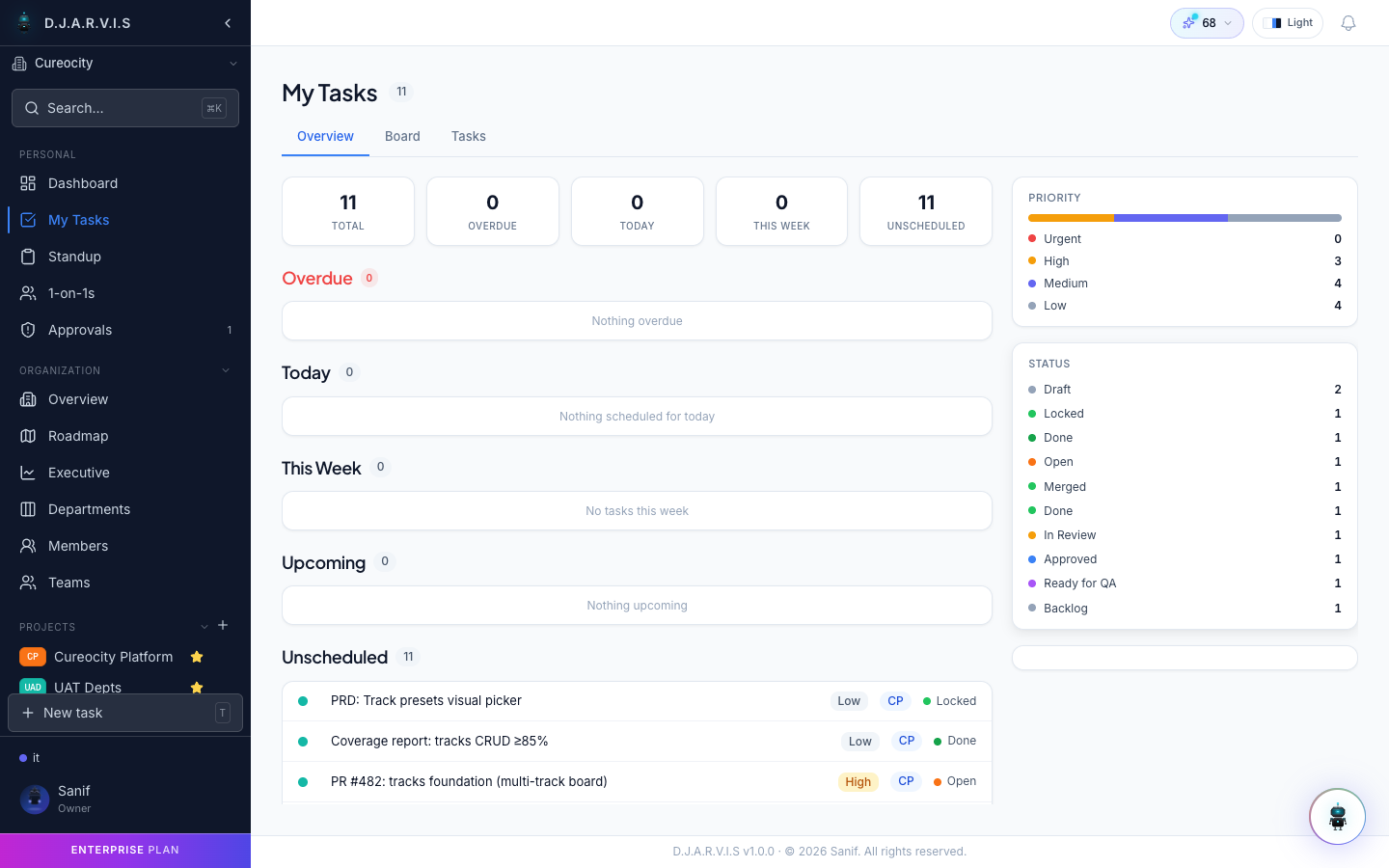
The My Tasks page gives you a personal view of every task assigned to you across all projects. Open it from the sidebar to see what needs your attention without switching between project boards.
Tasks are grouped by status so you can quickly scan what is in progress, what is coming up, and what you have recently completed.
Creating a task
There are several ways to create a task:
- Press T anywhere in the app to open the quick-create dialog.
- Click + New Task in the sidebar.
- Click + New Task on a board column to create a task directly in that status.
When creating a task you can set:
| Field | Description |
|---|---|
| Title | A short summary of the work (required). |
| Description | Rich-text details, acceptance criteria, or context. |
| Type | Feature, Bug, Chore, Improvement, Tech Debt, Story, or Epic. |
| Priority | Low, Medium, High, or Urgent. |
| Assignee | The team member responsible for the task. |
| Sprint | The sprint this task belongs to. |
| Epic | The parent epic grouping related work. |
| Due date | The deadline for completing the task. |
| Story points | An estimate of effort used for sprint planning. |
Task ID format
Every task gets a unique ID composed of the project key and an auto-incrementing number. For example, a project with the key CM will have tasks CM-001, CM-002, CM-003, and so on. Task IDs are stable and never change, so you can safely reference them in conversations, commits, and pull requests.
Task types
Takonaut ships with a default set of task types. Your organization admin can customize which types are available in Settings.
| Type | When to use |
|---|---|
| Feature | New functionality or capability. |
| Bug | Something that is broken and needs fixing. |
| Epic | A large body of work broken into smaller tasks. |
| Chore | Routine work like dependency updates or config changes. |
| Improvement | Enhancing an existing feature without adding new behavior. |
| Tech Debt | Refactoring, cleanup, or architectural work. |
| Story | A user-facing requirement described from the user’s perspective. |
Each type has its own icon and color badge so you can distinguish them at a glance on the board.
Task priorities
Priorities help the team decide what to work on first. Every task has one of four priority levels:
- Urgent — Drop everything. This is blocking the team or customers.
- High — Important work that should be picked up in the current sprint.
- Medium — Standard priority. Will be scheduled in an upcoming sprint.
- Low — Nice to have. Pick it up when higher-priority work is done.
Priority is shown as a colored icon on the board and in task lists.
Task statuses
Task statuses map directly to your project board columns. The default statuses are:
- To Do — Work has not started.
- In Progress — Someone is actively working on this.
- Done — The task is complete.
Your project can define custom columns (for example, “In Review” or “QA”), and each column represents a status. Moving a task card between columns updates its status automatically.
Task assignment
Assign a task to a team member by selecting them from the Assignee dropdown when creating or editing a task. You can also drag a task onto a team member’s avatar in certain views.
Only members who have been added to the project can be assigned tasks in that project.
Subtasks
Break large tasks into smaller pieces by adding subtasks. A subtask is a full task in its own right — it has its own ID, status, assignee, and all other fields — but it is linked to a parent task.
To create a subtask, open a task and click Add subtask. Subtasks appear in a list within the parent task detail view, and you can track their progress without leaving the parent.
Quick task creation
For speed, press T on your keyboard from anywhere in the app. The quick-create dialog opens with your current project pre-selected. Type a title, optionally set a few fields, and hit Enter. The task is created and you are back to what you were doing in seconds.