Members
The Members page is the central directory for everyone in your organization. From here you can invite new people, assign roles, manage access, and see at a glance who is active.
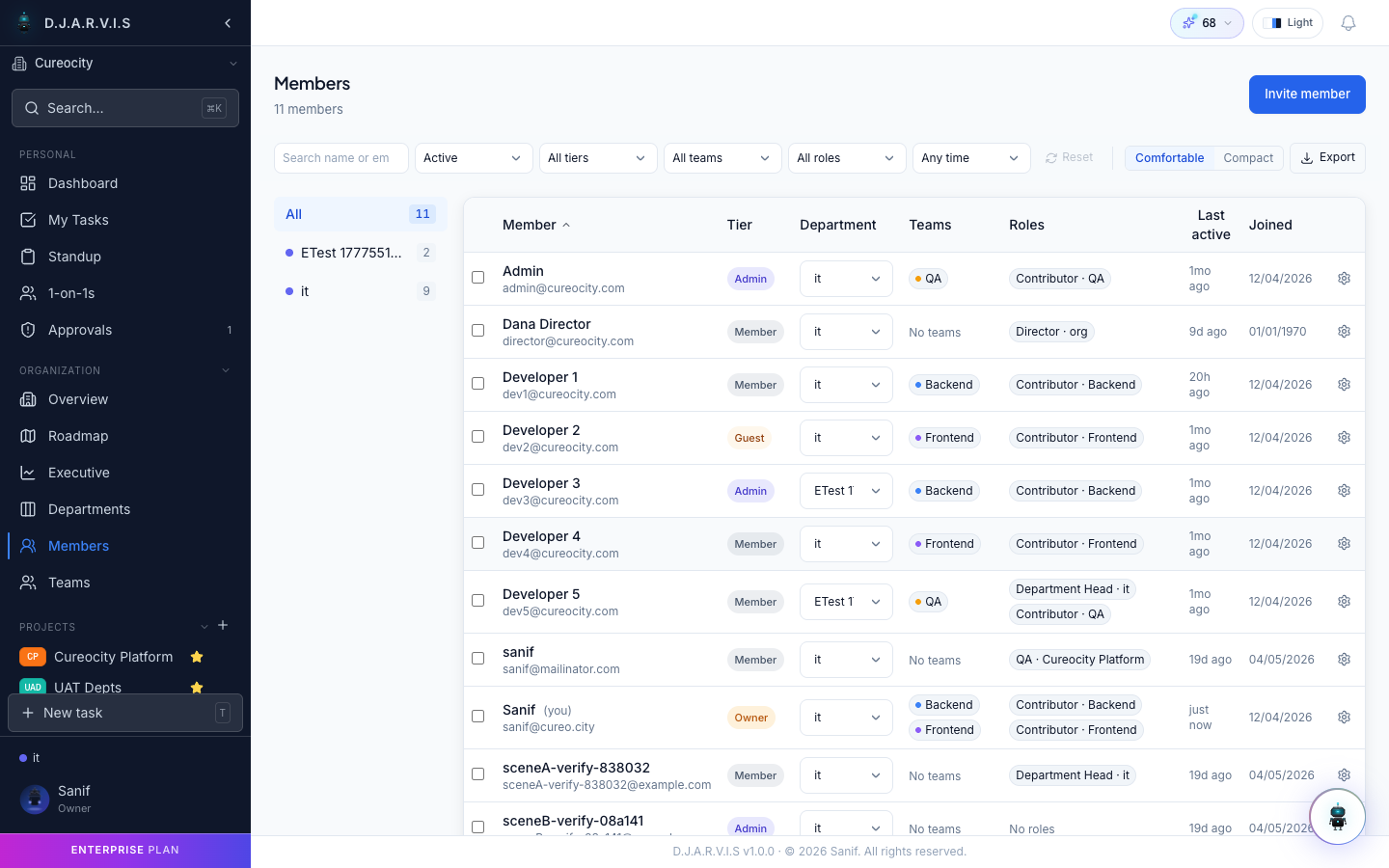
Members List
The members list shows every person in your organization along with their key details:
- Name and avatar — display name and profile picture.
- Email — the address they signed up or were invited with.
- Role — their organization-level role (e.g. Admin, Member).
- Department — which department they belong to.
- Team — which team they’re assigned to.
- Status — whether the member is active or deactivated.
Use the search bar to find someone by name or email. You can also filter by role, department, or status to narrow the list.
Inviting Members
To add someone to your organization, click the Invite Member button. You’ll need to provide:
| Field | Description |
|---|---|
| The email address of the person you want to invite. | |
| Role | The role they should have in the organization (see below). |
| Department | Optionally assign them to a department right away. |
| Team | Optionally assign them to a team within that department. |
The invited user receives an email with a link to join. If they don’t have a Takonaut account yet, the link walks them through account creation. Once they accept, they appear in the members list with the role and assignments you specified.
Member Roles
Roles control what a member can see and do across the organization. Takonaut ships with the following built-in roles:
| Role | Description |
|---|---|
| Owner | Full control over the organization, including billing, settings, and member management. There is always at least one owner. |
| Admin | Can manage members, projects, departments, and most organization settings. Cannot modify billing or transfer ownership. |
| Department Head | Leads a department. Can manage teams, projects, and members within their department. Approves leaves and WFH requests for their department. |
| Project Manager | Manages one or more projects. Can create sprints, assign tasks, and configure project settings. |
| Team Lead | Leads a team within a department. Can manage team members and oversee team projects. |
| Member | A standard team member. Can view projects they have access to, work on assigned tasks, and participate in ceremonies. |
| Contributor | Limited access, typically for external collaborators. Can view and work on specific projects they’re added to. |
| Guest | Read-only access to projects they’re explicitly invited to. Cannot create or modify tasks. |
| QA | Focused on quality assurance. Can move tasks through testing statuses and report bugs. |
A member’s role determines their baseline permissions, but access can be further refined through department, team, and project-level assignments.
Activating and Deactivating Members
When someone leaves the organization or goes on extended absence, you can deactivate their account instead of removing them. Deactivation:
- Prevents the member from signing in.
- Removes them from active member counts.
- Preserves their task history, comments, and contributions for audit purposes.
- Does not reassign their open tasks automatically — you should reassign those before deactivating.
To deactivate a member, open their profile from the members list and click Deactivate. To bring them back, click Activate on the same profile. Only Admins and Owners can activate or deactivate members.
Member Profiles
Click any member in the list to open their profile. The profile shows:
- Personal details — name, email, role, department, and team.
- Assigned tasks — a list of tasks currently assigned to them, with status and priority.
- Activity history — recent actions like task completions, comments, and standup submissions.
- Gamification stats — XP level, coins, and achievements.
Profiles help managers understand workload distribution and track individual contributions without digging through multiple project boards.
Department and Team Assignments
Members can be organized into departments and teams to reflect your real-world org structure. You can set these during the invite process or update them later from the member’s profile.
- A member belongs to one department at a time.
- Within that department, they can be part of one or more teams.
- Changing a member’s department or team updates their access to department-scoped and team-scoped projects automatically.
- Department Heads and Team Leads can manage assignments for their respective groups. Admins and Owners can manage assignments across the entire organization.