Organization
An organization is the top-level entity in Takonaut. It represents your company, studio, or any group that works together. Every piece of data in the system — projects, tasks, sprints, members, leaves — belongs to exactly one organization.
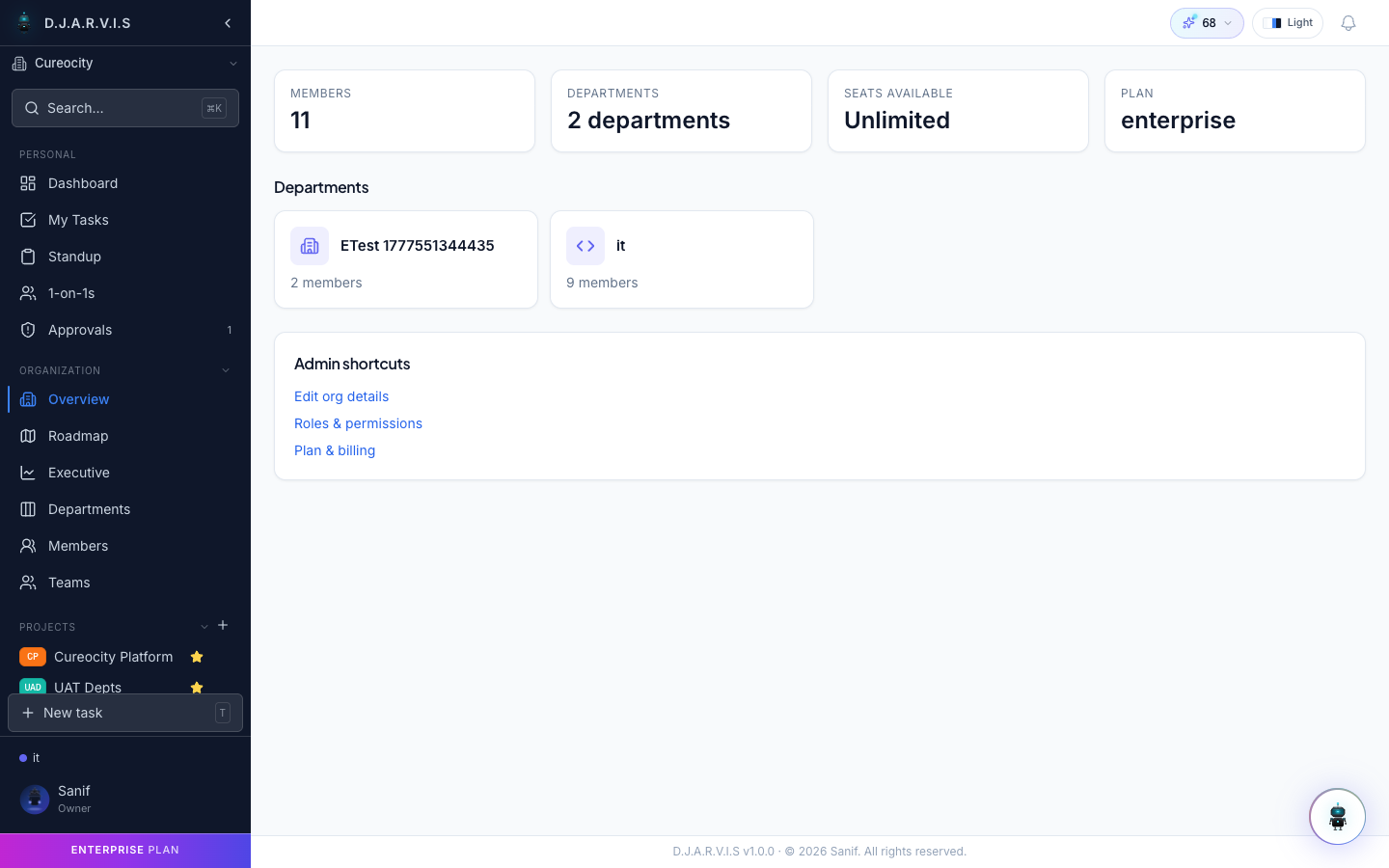
The Overview Page
The overview page is your organization’s home base. It puts the four most-asked-about numbers at the top and the full org structure underneath, so you can read the shape of the company without opening four other pages.
The stats row shows:
- Members — how many people are currently active in the organization.
- Departments — total department count.
- Seats available — remaining seats on your plan (or Unlimited on enterprise tiers).
- Plan — your current subscription tier.
The Org Chart
Below the stats, Overview renders a horizontal org chart: the organization sits at the top, departments branch off, and each department’s teams hang underneath. Each team box collapses by default and expands to show its members in a list.
The chart is pan-and-zoom: scroll to zoom, drag to pan, and use the floating controls (top-right) for + / − / reset view. This scales smoothly from a 5-person studio to a 500-person org.
Department nodes
Each department box shows:
- the department’s icon and name (clickable — opens the department’s dedicated page),
- a DH badge with the Department Head’s avatar and name (or “No head assigned”),
- a pencil button (visible to anyone with
departments.editon that department) that opens the inline Edit department dialog — same form as the Departments page, no navigation required.
Team nodes
Each team box shows:
- a colored dot + the team name,
- a Lead badge with the team lead’s avatar (or “No lead”),
- a member count,
- a chevron to expand the member list,
- a pencil button (
teams.edit) that opens the inline Edit team dialog.
The Edit team dialog lets you rename the team, change its color, write a description, and pick a lead. The lead picker is a searchable list of active org members — start typing and the matches narrow down. Clearing the lead (× button next to the selected member) removes the team’s designated lead.
Member rows + quick actions
When you expand a team, each member row shows the avatar, name, and a crown icon next to the current lead. Hovering a member reveals a … menu with quick actions, gated by your permissions:
- View profile — opens the member’s profile page (always available).
- Make team lead — sets
Team.lead_idto this member (requiresteams.edit). - Remove from team — removes the
TeamMemberrow and revokes the auto-Contributor team grant (requiresteams.assign_members).
All actions take effect immediately and the chart refetches in place — no full page reload.
Unassigned members
Active organization members who aren’t on any team appear in an Unassigned block at the bottom of the chart. This keeps them visible (rather than silently dropping them) so admins can quickly spot people who haven’t been placed on a team yet.
Organization Hierarchy
Takonaut organizes work in a clear top-down structure:
| Level | Purpose |
|---|---|
| Organization | The top-level container. Everything lives under one org. |
| Departments | Major divisions within the org (e.g. Engineering, Product, Marketing). Each has a single Department Head. |
| Teams | Smaller groups within departments (e.g. Backend, Frontend, Design). Each can have one designated Team Lead. |
| Projects | Work containers owned by a team or department. |
| Tasks | Individual work items inside a project. |
This hierarchy drives visibility, permissions, and reporting. A task belongs to a project, which belongs to a team, which sits inside a department, which is part of the organization. The org chart on the Overview page makes this structure visual and editable in place.
Organization Switcher
Users can belong to more than one organization — for example, a freelancer working with two clients, or an employee who also contributes to an open-source org.
The org switcher sits at the top of the sidebar. Click it to see every organization you’re a member of and switch between them instantly. When you switch:
- The sidebar updates to show that org’s projects and navigation.
- All data — tasks, sprints, members, settings — changes to reflect the active organization.
- Your role and permissions may differ between organizations.
The active organization is highlighted in the dropdown. Switching is instantaneous and requires no page reload.
Multi-Tenancy
Takonaut enforces complete data isolation between organizations. This means:
- Members of Organization A cannot see any data from Organization B, even if they belong to both.
- Every API request is scoped to the active organization. Switching orgs in the UI changes the data context entirely.
- The Overview’s org-tree endpoint refuses to return another org’s structure even to a multi-org user — slug and
X-Organization-Idmust agree, and the caller must be an active member. - Projects, tasks, sprints, leaves, and all other records are tied to a single organization and never leak across boundaries.
- Roles and permissions are per-organization. Being an Admin in one org does not grant any privileges in another.
This isolation is enforced at the database level, not just the UI.
Organization Settings
Organization-wide configuration is managed from Settings in the sidebar. Depending on your role, you can access:
- General — organization name, logo, and basic details.
- Billing & Plan — current subscription plan, usage, and upgrade options.
- Workflows — configure task statuses, board columns, and automation rules.
- Integrations — connect GitHub, Slack, and other third-party services.
- Feature flags — enable or disable optional features for the organization, including
org_tree_viewwhich controls whether this Overview page shows the chart (on) or the legacy department grid (off).
Only users with the appropriate admin permissions can modify organization settings. See Settings & Admin for full details.